Whether you're a developer planning a multifamily housing project, an architect creating design options, or a broker evaluating residual value, Zenerate helps you quickly design, edit, and optimize residential buildings. Our intuitive interface and AI-powered engine make it easy to iterate and get the best layout for your site.
Follow the steps below to get started.
Add Residential Buildings
To add a residential building to your site in Zenerate:
Click Edit on the toolbar at the bottom of the screen,Click Building,Choose your preferred building type: Tower, Midrise or Wrap Type
Once selected, the building will appear on your site and is ready for customization.

Residential Building Tool Bar
When a residential building is selected, the Residential Building Toolbar appears on the right-hand side. This is where you can fine-tune your building’s configuration.
Floor Settings
In this section, you can set:
Total number of floors,Floor-to-floor height,Typical floor plan and height settings
This ensures your project aligns with zoning requirements and design standards.
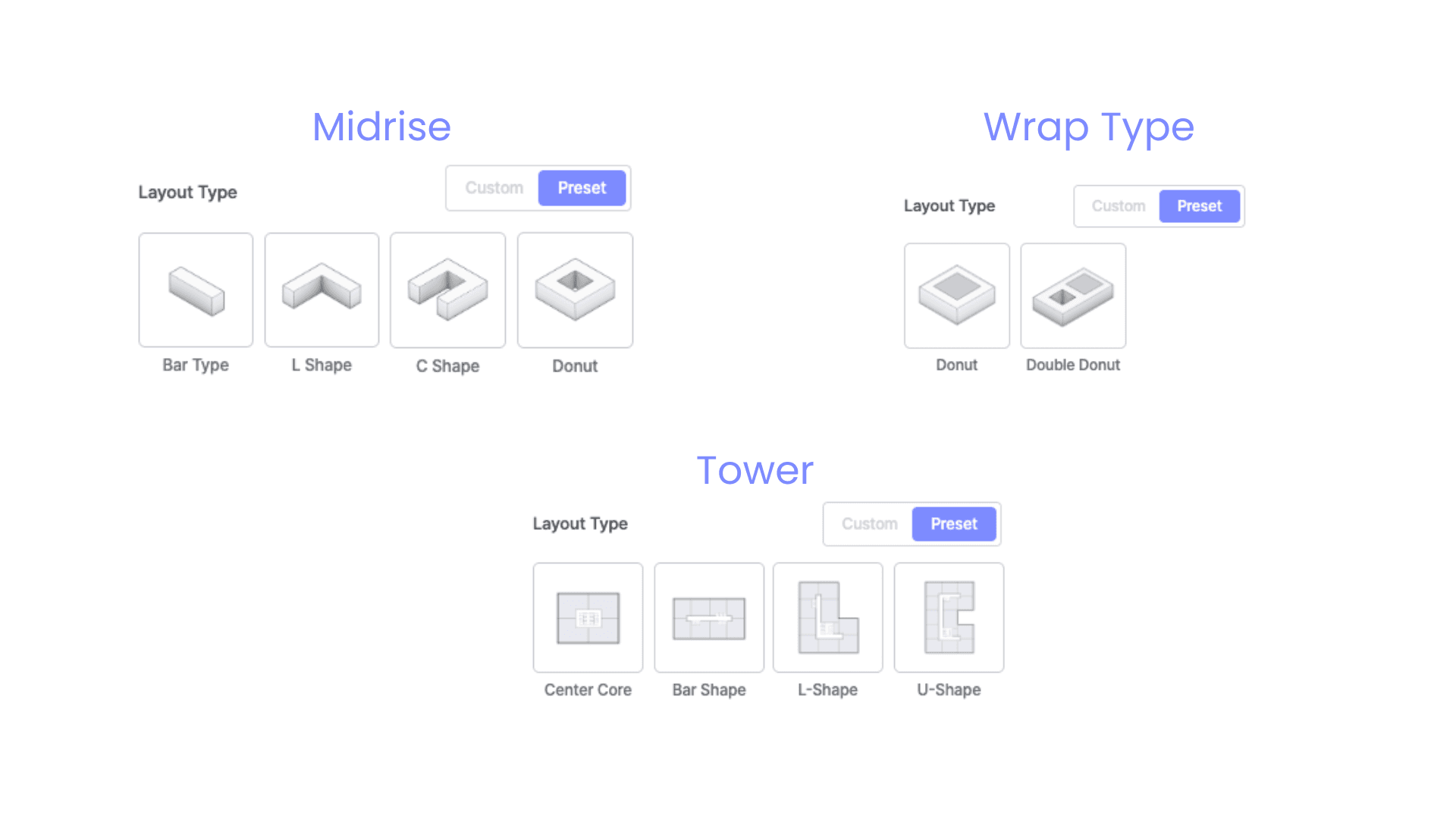
Layout Type
Tower: Center Core, Bar Type, L-Shape, U-Shape,Midrise: Bar Type, L-Shape, C-Shape, Donut,Wrap Type: Donut, Double Donut
Just click the layout you prefer, and Zenerate will automatically adjust your building shape.
Unit Mix
This tool lets you define the average unit area and ratio of each unit type. Test different unit mix combinations to find the most efficient and profitable solution for your project.
Read more on how to use Unit Mix
Unit Depth and Balconies
Set your preferred unit depth, and toggle balconies on or off to automatically apply them across all units in your selected layout.
Edit Building Layout
Zenerate allows real-time editing of your building massing and shape using a drag-and-drop interface, giving you control and flexibility without starting from scratch.
Modify Building Shape
Modify building shape simply by using our drag and drop feature. Follow this steps on how:
Click on the building layout you want to modify.,Drag the end nodes to extend or shorten the building’s footprint.

Add Wings
Users can also add wings to their building layout by following these steps:
Click on the building layout that you would like to add wings to,On the floating editing bar, click on Add Wing,Drop your starting point on any part of your building centerline and extend it according to your needs.

Single vs. Double-loaded Corridor
Users can easily change a wing’s layout to a single-loaded or double-loaded corridor by clicking on your desired wing’s centerline and checking or unchecking the desired section.

Duplicate and Delete
Through the floating editing toolbar, users can easily duplicate a building layout by clicking the duplicate button, or remove it entirely by clicking the delete button.

Edit Unit Layout
To edit your unit layout, double-click on the building layout to access the floating toolbar for each unit.
Change Unit Type
To change a unit type, follow these simple steps:
1. Select the unit you’d like to modify.,2. Click the dropdown on the floating editing bar.,3. Choose your desired unit type from the list.
Zenerate supports a range of residential and non-residential unit types:
Residential: Studio, 1 Bed, 2 Bed, 3 Bed,Non-Residential: Amenity, Retail, Office, Lobby, MEP, Laundry, Bike Parking, Facility, Corridor, Void.

To change multiple units at once:
1. Click Room/Area at the bottom of the screen,2. Select the unit type you want to apply.,3. Draw over the target area to bulk-assign units.

Merge
To merge units, follow these steps:
1. Select a unit you want to merge,2. Click Merge,3. Choose an adjacent unit to combine with it

Split
To split a unit, follow these steps:
1. Select a unit you want to divide,2. Click Split,3. Draw a line where you’d like to divide the unit—the new units will retain the same type as the original

Editable Unit
With this feature, you can reshape a unit without restrictions—ideal for fitting units to irregular site geometries.
1. Select a unit you want to modify,2. Click Editable Unit,3. Once you see the editable label, drag the unit’s edges to freely reshape it

Move Unit
If you'd like to move units, simply drag the unit to a new location—Zenerate will instantly adjust the layout to reflect the change.
This makes it easy to fine-tune circulation, stacking, or program distribution on the fly.

Other Resources
Zenerate makes it easy for you to get precise with your designs. Book a demo with us and get a free trial for a hands-on experience today!
Book Demo + Get a Free Trial