Zenerate now enables users to add and edit five types of zones to their project sites, supporting more effective feasibility studies and early-stage planning. These zones play a critical role in ensuring developments are aligned with market expectations, municipal regulations, and environmental considerations.
Available Zone Types in Zenerate
The following zone types can be added to any lot within Zenerate:
• Easement
• Open Space
• Outdoor Amenity
• Wetland
• Green space
How to Add Zones
Zones can be added with a few simple steps:
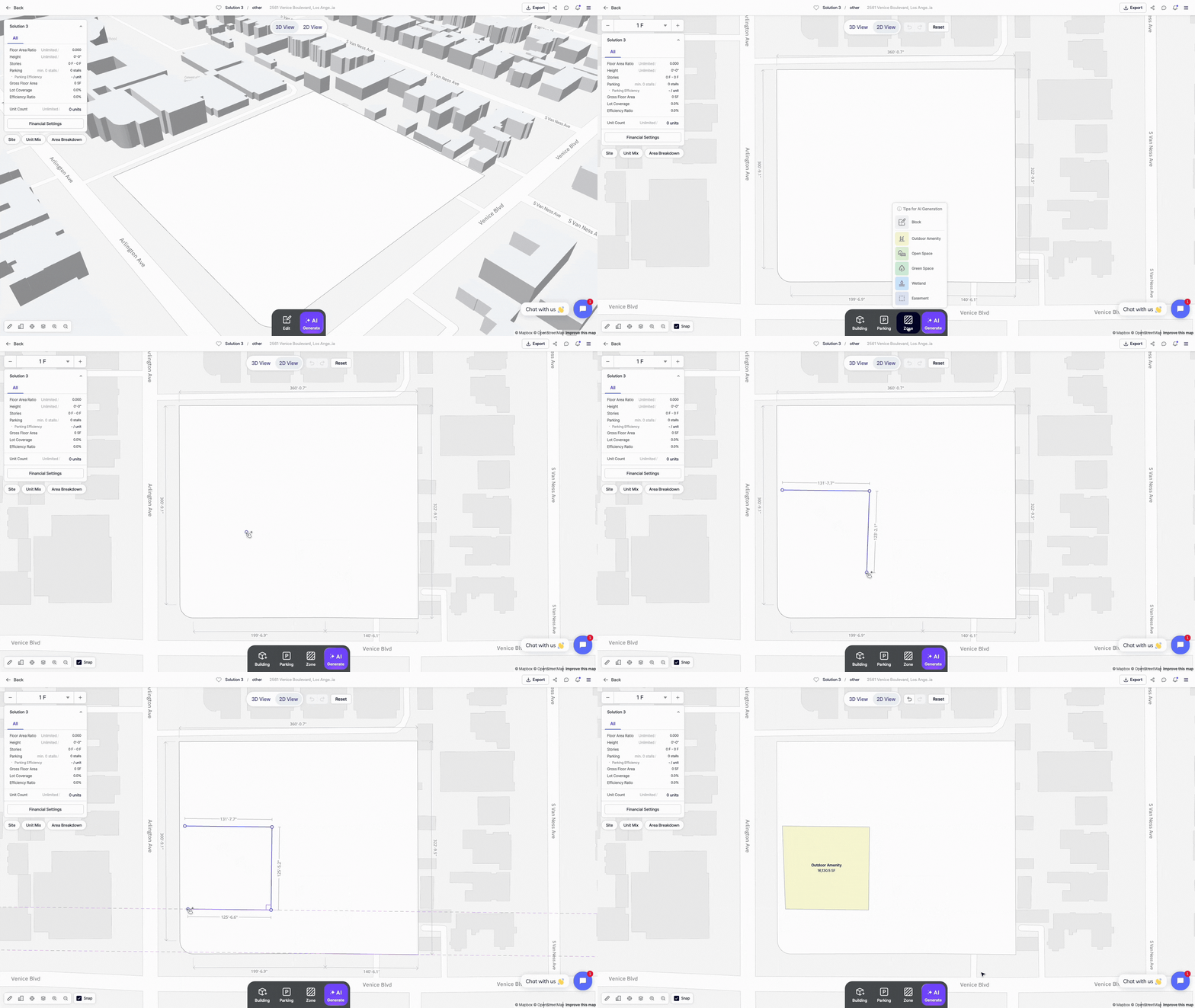
1. Click Edit on the bottom menu bar
2. Select Zone
3. Choose the desired zone type
4. Draw the zone boundaries directly on the lot
This functionality supports more comprehensive and flexible site design from the outset of a project.
How To Edit Zones
Zenerate offers robust tools for modifying and refining zones after placement:
Customize Zone Boundaries
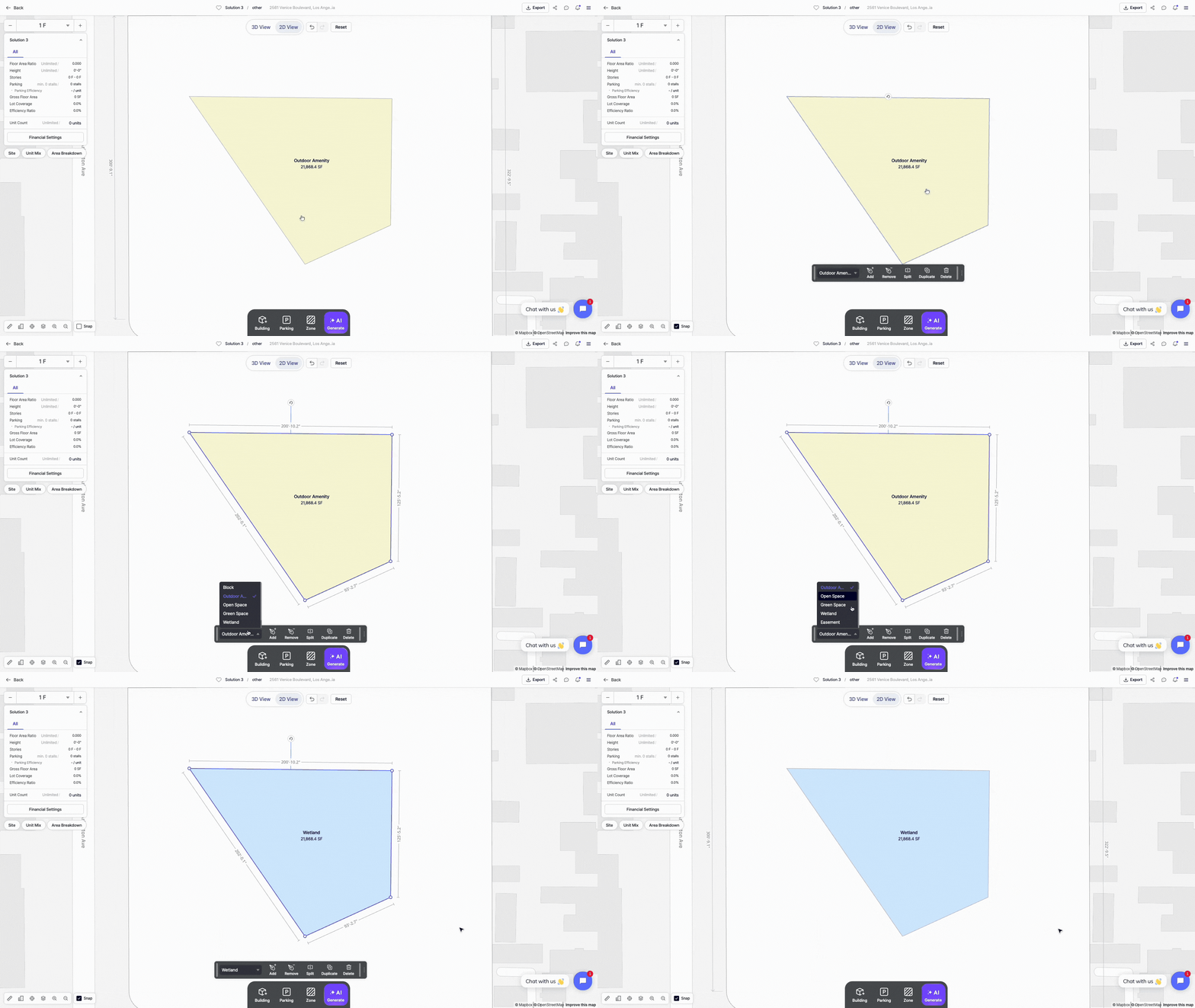
Each zone's size and shape can be easily adjusted by dragging the corners, moving the boundary lines, or typing in exact measurements. This makes it simple to fit zones to lots with unusual shapes or specific zoning rules.

Change Zone Type
To change an existing zone type:
1. Select the zone
2. Use the dropdown in the pop-up menu
3. Select the new desired zone type
This enables quick iteration during feasibility and test-fit phases.
Add and Remove Point
Corner points of a zone boundary can be added or removed to fine-tune shape and fit.
To add a point:
1. Select the zone
2. Click Add on the pop-up menu
3. Click on the desired location along the boundary
.gif)
To remove a point:
1. Select the zone
2. Click Remove
3. Click the point to delete
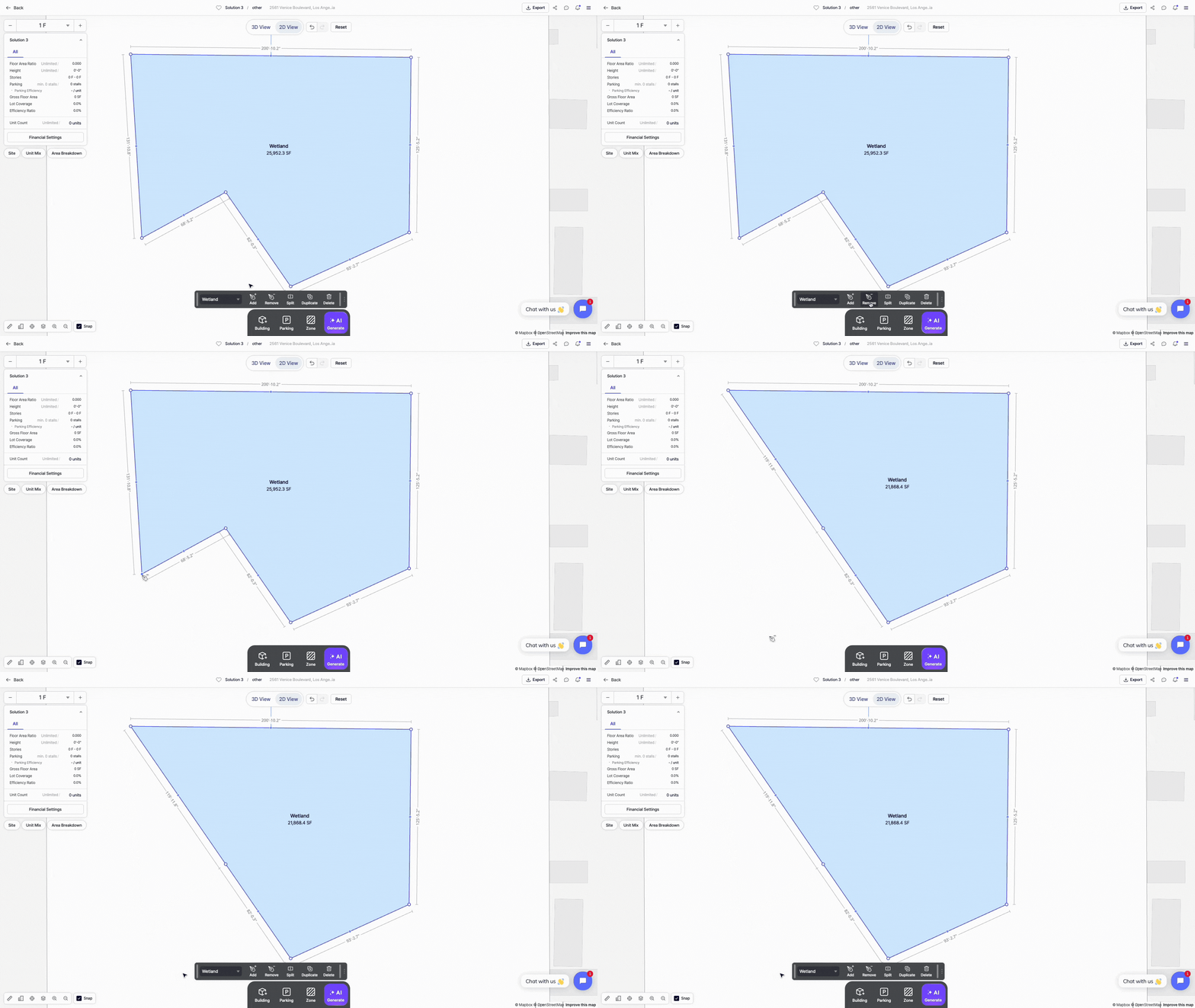
This level of control allows detailed customization, especially on irregular sites or parcels with unique constraints.
Split Zone
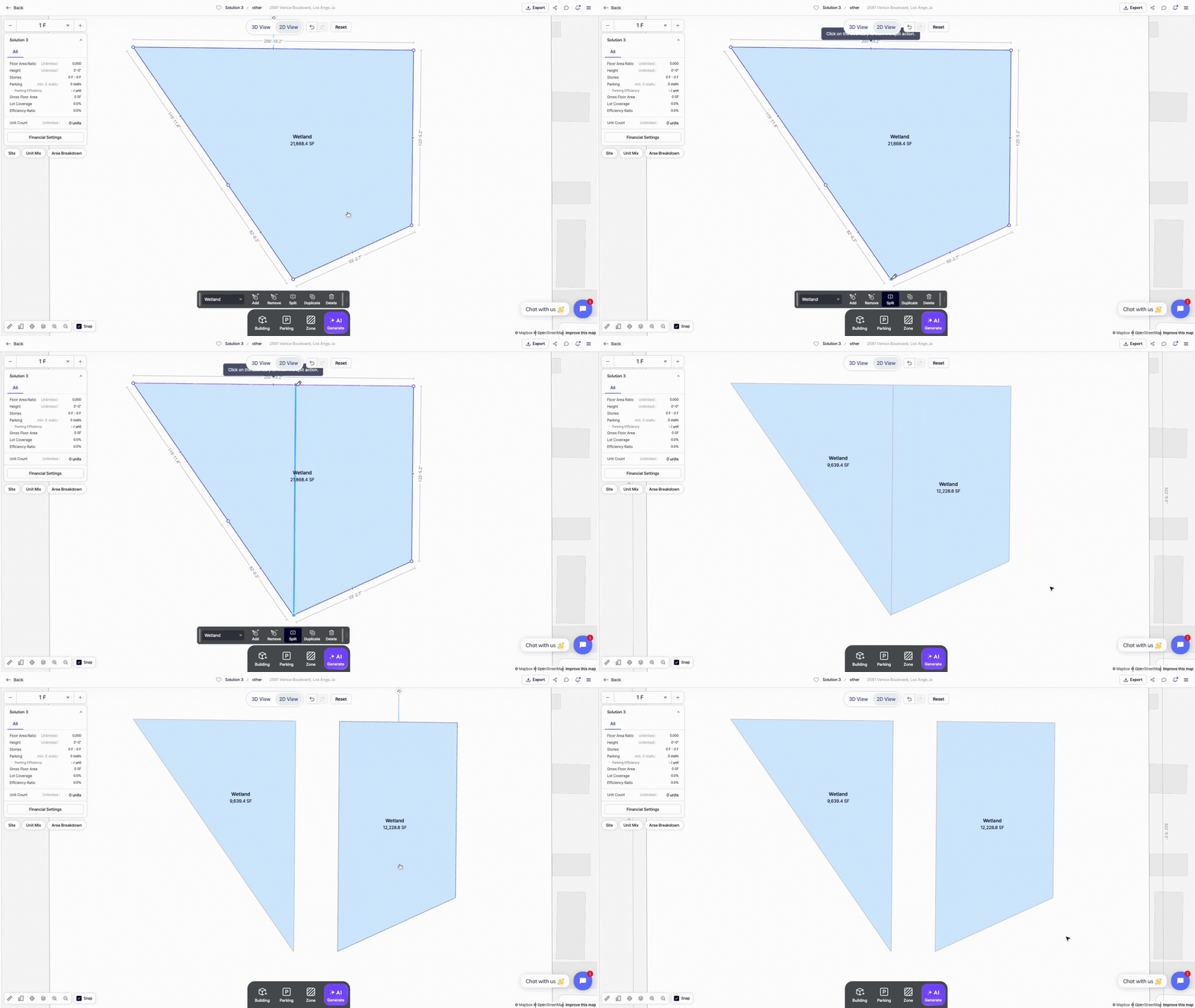
Zones can be split into multiple parts by:
1. Selecting the zone
2. Clicking Split in the pop-up menu
3. Drawing a straight line to divide the area
This is especially useful for phasing plans, mixed-use developments, or differentiated programming within a single site.
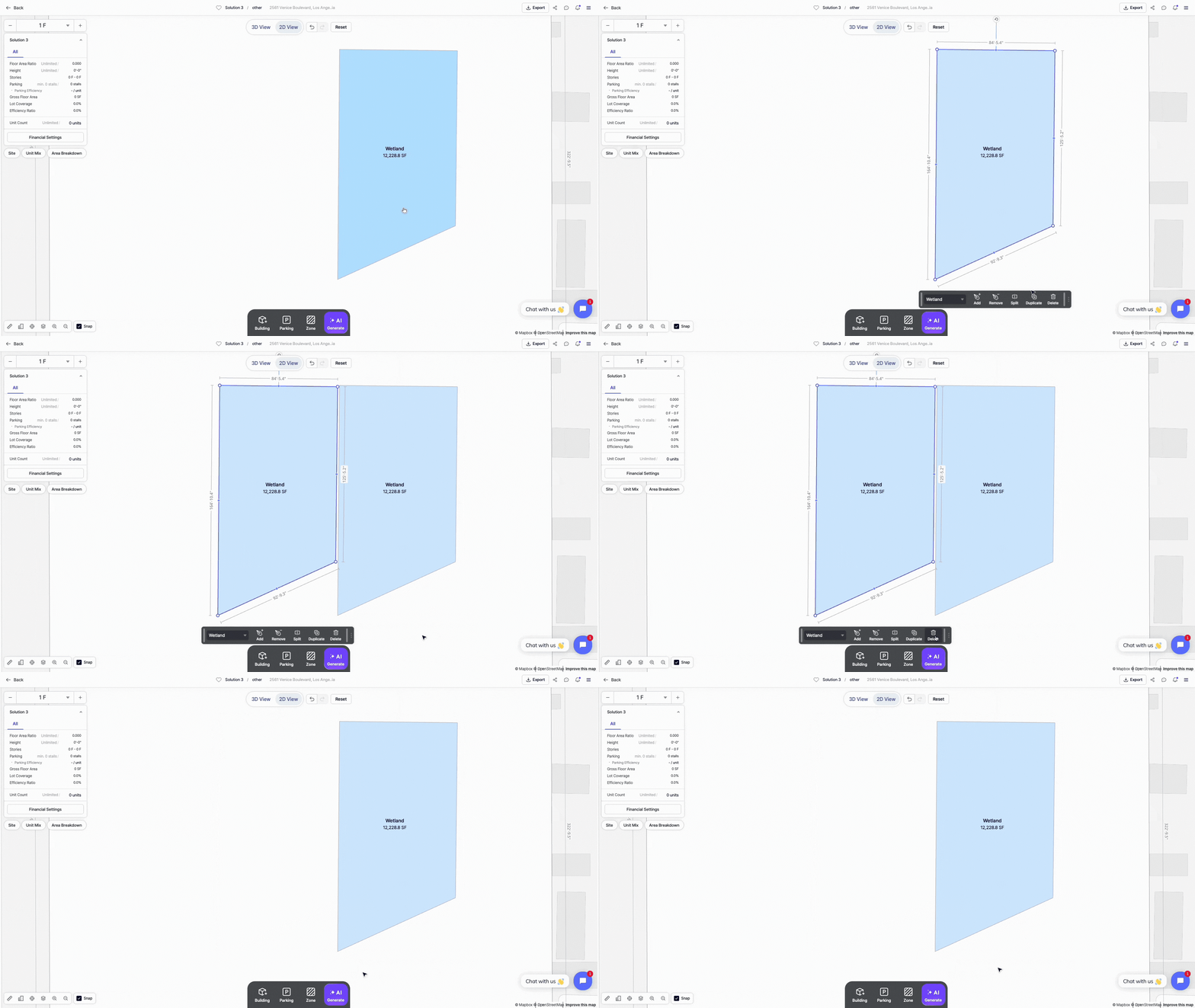
Duplicate and Delete Zone
Existing zones can be duplicated or deleted as needed:
1. Select the zone
2. Click Duplicate or Delete in the pop-up menu
Changes are reflected immediately on the lot, enabling fast iteration during the planning process.
With Zenerate's AI, users can generate optimized building layouts within the lot while maintaining full control over your defined zones, making sure our system won't alter their position.
Learn how to make the most of this feature in our Custom Style AI Design Generation Guide.
Explore What Zenerate Can Do
Ready to accelerate your feasibility studies? Book a demo with us today and get a free trial to see how fast site planning can be done.
Book a demo + Get a Free Trial