Creating realistic visuals from early design concepts can help architects, developers, and stakeholders better understand a project before moving into later design stages. With Zenerate's AI Rendering feature, users can generate realistic renderings directly from modeling results created inside the app.
This is especially useful during a real estate feasibility study, when teams are still exploring early test fit scenarios, comparing design options, and preparing visuals for client conversations or internal reviews. Instead of waiting until later phases to create presentation images, users can create AI-generated renderings directly from their feasibility models.
Whether you are using Zenerate as part of your regular land development workflow or exploring the platform through a free trial, the AI Rendering feature can help turn early design studies into clearer, more visual outputs.
Step 1: Set Up Your Project and Create Your Building
Start by setting up your project as normal. This includes selecting your parcel, confirming your site information, and setting up key project conditions such as street sides, setbacks, and other relevant inputs.
If you are new to Zenerate or need a refresher, you can review our full project setup guide here.
Once your project is set up, create your building or select an existing solution. You can generate a building using AI, manually edit a layout, or choose a design option that you want to visualize.

This step is important because AI Rendering uses the modeling results created inside Zenerate. Before generating a render, make sure you have a building, site plan, or design view ready to use.
Step 2: Open the AI Rendering Panel
After creating your project and generating or editing your building model, click AI Render in the header.

This will open the AI Rendering panel, where you can begin setting up your render. From here, you can choose a preset style, enter a custom prompt, confirm your view, and track the rendering process.
Step 3: Choose a Preset Rendering Style from the Gallery
Inside the Gallery, you will find preset rendering styles saved by default.
These preset styles are designed to help users quickly apply different visual directions without writing a prompt from scratch. This can be helpful when testing different presentation styles during early site feasibility analysis or when preparing visuals for client-facing materials.

For example, you may want to test a more realistic architectural style, a softer concept image, or a different material direction depending on the audience and project stage.
Step 4: Insert a Style or Enter Your Own Prompt
Once you find a preset style you want to use, select the style and click Insert to Render.

This will apply the selected style to the rendering panel so you can start generating your image. You can also enter your own prompt directly if you want more control over the final output.
Custom prompts are useful when you want to describe a specific visual direction, such as material tone, lighting, surrounding context, or atmosphere. For client-facing visuals, it can be helpful to describe the intended design mood clearly while keeping the original model geometry intact.
Step 5: Confirm the View Before Rendering
Before the render begins, you will confirm the view.
At this stage, you can change the view or decide whether to render from a 2D or 3D image. This gives you more control over how the final rendering is generated.
A 3D image may be more useful when showing building massing, façade direction, or overall architectural character. A 2D image may be helpful when communicating site layout, floor plan organization, or early design structure.

Choosing the right view is important because it affects how the AI interprets your model and generates the final visual output.
Step 6: Track Progress in the Render Queue
Once the render starts, you can track its progress in the Render Queue.
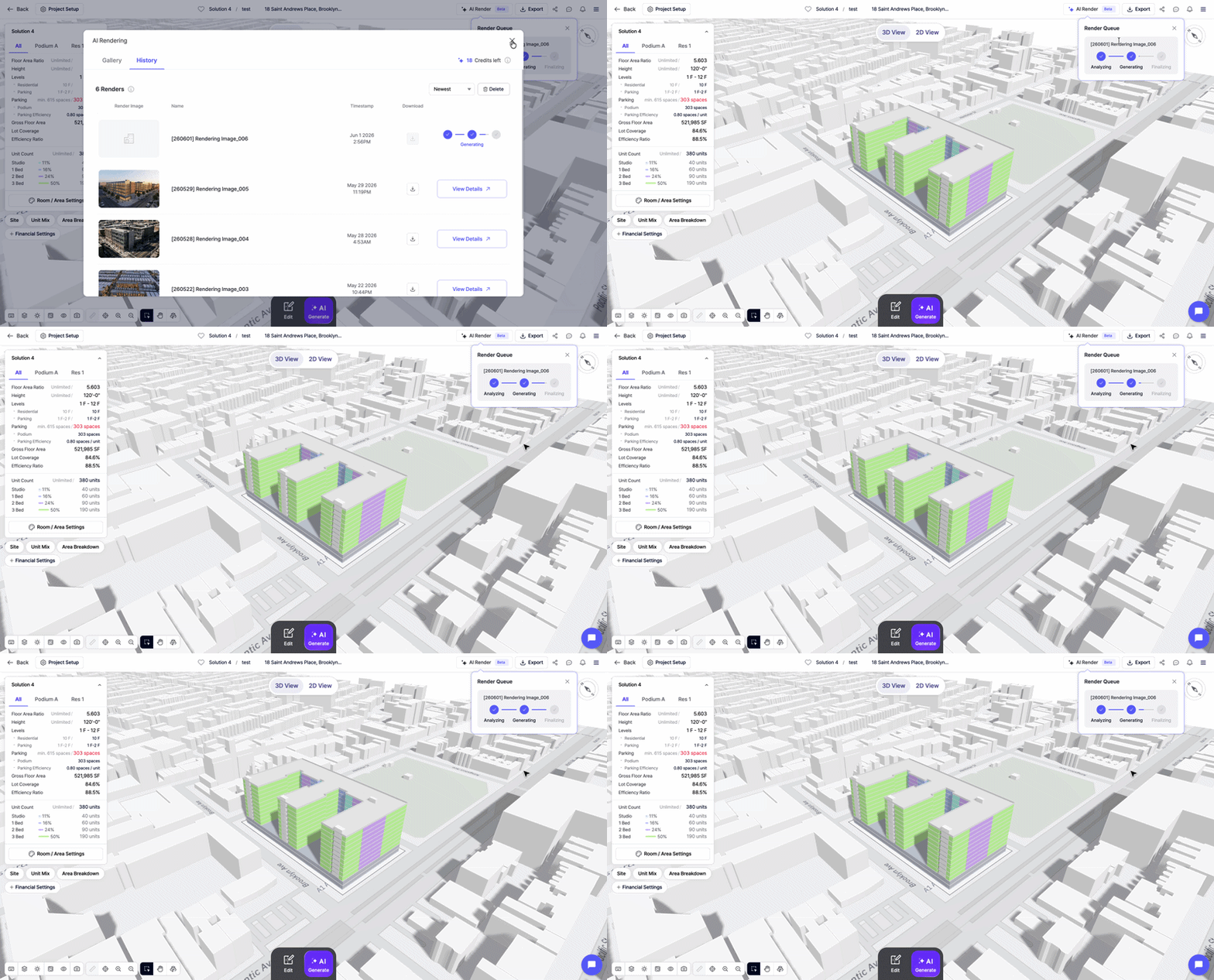
This allows you to monitor the status of your render while continuing to work. The Render Queue helps keep the process organized, especially when generating multiple images for different test fit options or presentation styles.
Step 7: View and Download the Completed Render
When the render is complete, you will receive a notification.
Click the notification to view the generated image. From there, you can review the result and download the image for use in presentations, internal discussions, feasibility reports, or client materials.

This can be especially valuable during a development feasibility study, where visual outputs can help explain the design potential behind early modeling results.
Step 8: Review Previous Renders in Render History
In Render History, you can review all previously generated renders and prompts.

This makes it easier to compare earlier outputs, revisit successful prompt directions, and understand which prompts produced the best results. For teams working across multiple projects, Render History can also help maintain consistency in visual style and presentation quality.
Step 9: Save Useful Prompts to the Gallery
If you like a specific prompt, click View Details and select Save to Gallery.

Saving prompts to the Gallery allows you to reuse successful rendering styles in future projects. This is useful for teams that want consistent visual standards across feasibility studies, client presentations, or internal design reviews.
Over time, your Gallery can become a reusable library of preferred rendering styles, helping your team generate visuals faster and more consistently.
Rendering Tip: Preserve the Original Geometry
When using AI Rendering, the prompt matters.
To preserve the original massing, floor plan, or geometry without modification, clearly state this in your prompt. This helps guide the AI to enhance the visual style while keeping the underlying design structure aligned with your Zenerate model.
For example, you may include:
"Preserve the original building massing, floor plan, and geometry. Only enhance the architectural style, materials, lighting, and surrounding context."
This is especially important when the rendering is being used to support a real estate feasibility study, where the visual output should remain connected to the original model assumptions.
Need More Rendering Credits?
During the beta period, Zenerate is providing subscribers with 100 free credits, enough to generate 50 renders.
If you need more credits, please contact us through Tidio Chat or email us at support@zenerate.ai.
Explore What Zenerate Can Do
If you would like to discuss how Zenerate could support your feasibility or land development workflow, book a demo below to start the conversation.
Book a Demo + Start a Free Trial