Zenerate’s Display & Measure Tool Bar is equipped with features for accurate measurement, visualization, and layout modeling, Zenerate helps you create precise and optimized building designs. Discover how Zenerate can enhance your design workflow with these key features.
Ruler
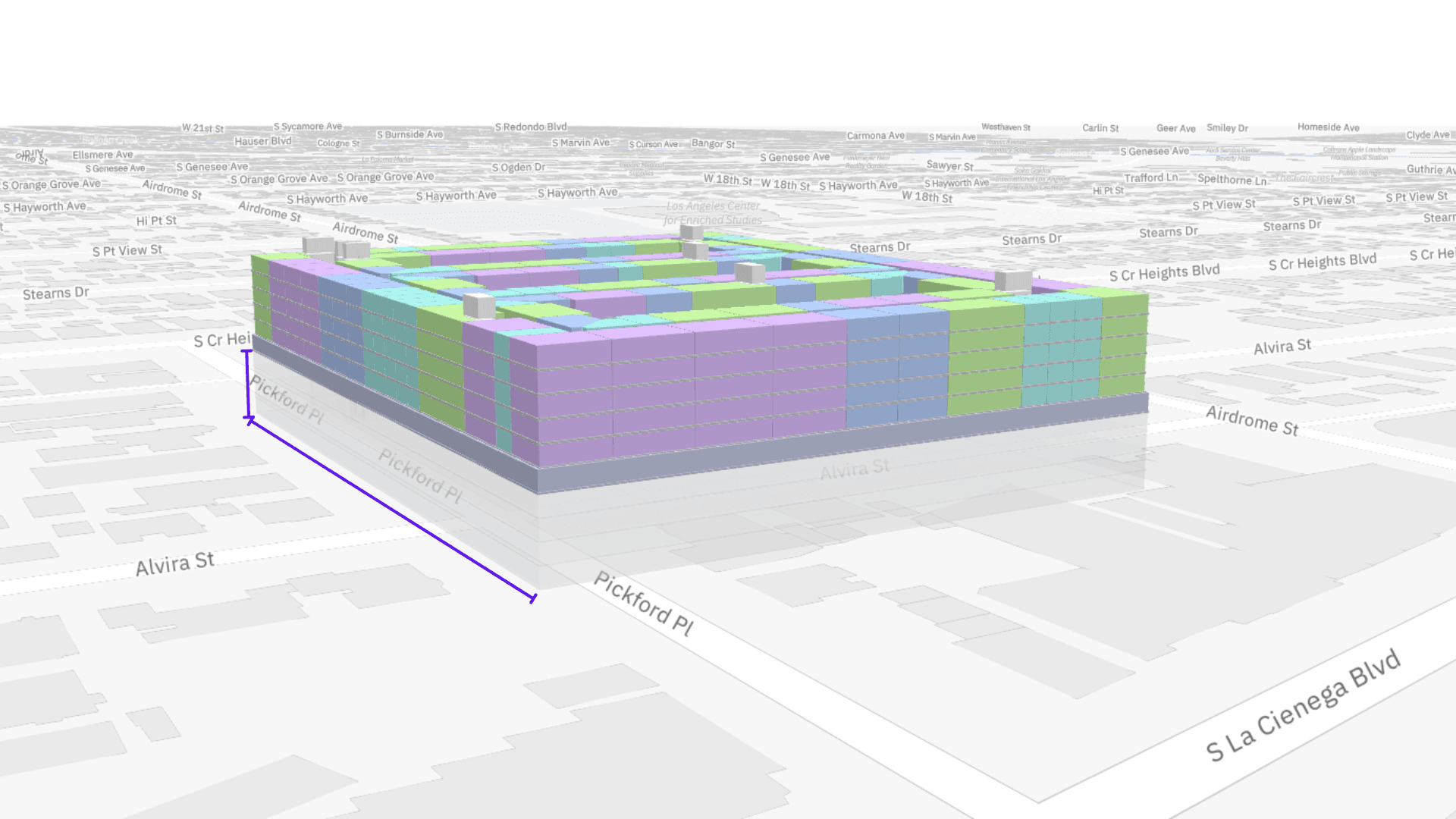
The Ruler Tool enables users to measure areas of the building where dimensions aren’t provided. Here’s how it works:
Click the Ruler icon,Press the '+' button to start your measurement,Select a starting point, then click again to define the end point

Once the points are set, Zenerate will display the exact measurement between them.
If you need to remove a measurement, click the trash can icon and select the measurement line to delete it.

Surrounding Buildings
The Surrounding Buildings feature lets you customize how the buildings around your site are displayed in Zenerate’s 3D view. Here’s how to make the most of this tool:
1. Hiding Surrounding Buildings
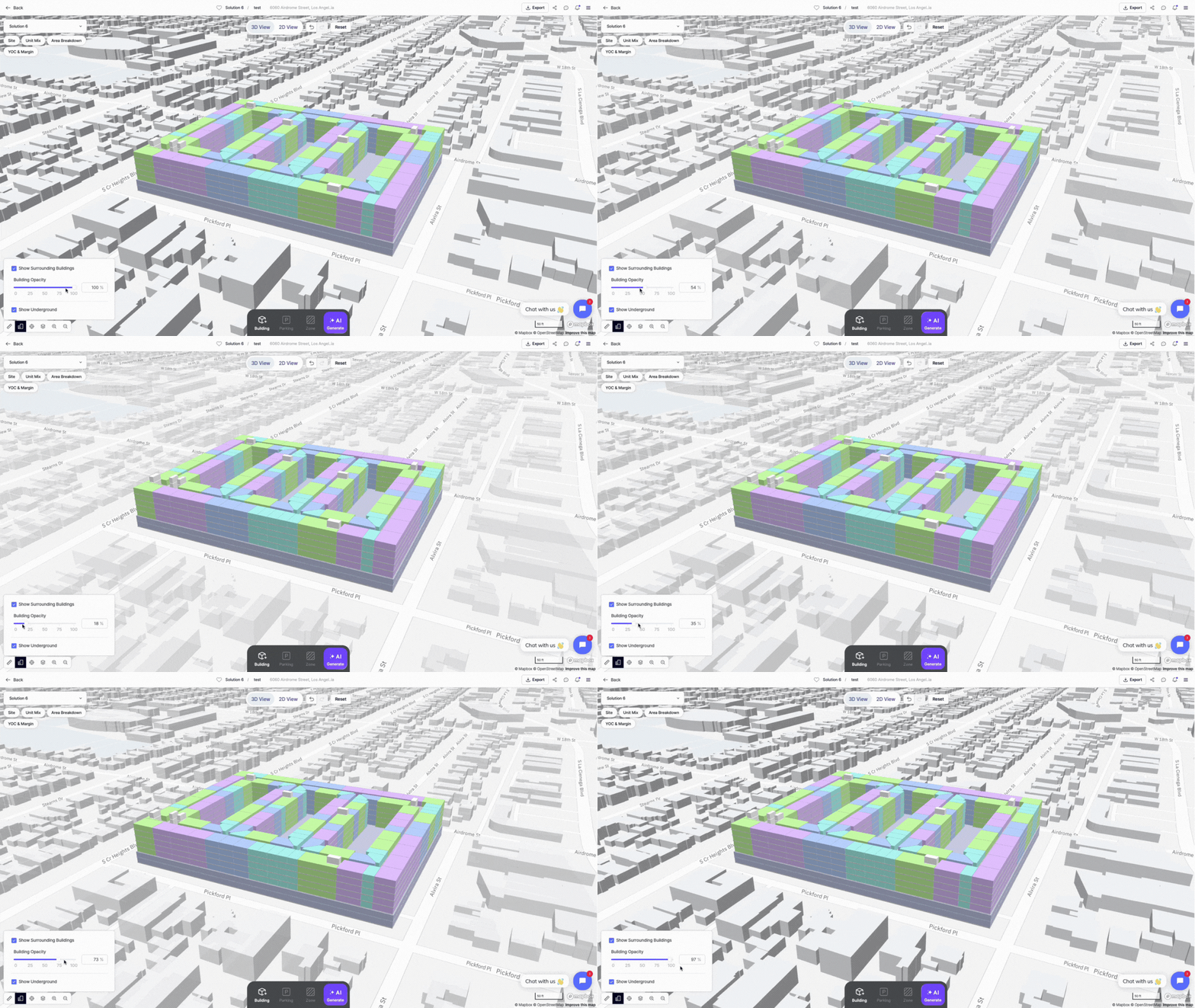
By default, this option is checked, showing the surrounding buildings' massing. If you'd like to focus exclusively on your design, uncheck this option to hide the buildings.

2. Building Opacity
Adjust the opacity of surrounding buildings to make them more transparent. This is helpful for focusing on your design without distractions from nearby structures.
3. Underground Visiblity
Toggle this setting to reveal any underground elements within your design, offering a more complete visual of your site.
Map Center
If you’ve shifted your site location on the map, the Map Center button will return your view to the center of your project. This feature ensures you always know where your site is positioned within the design environment.

Map View
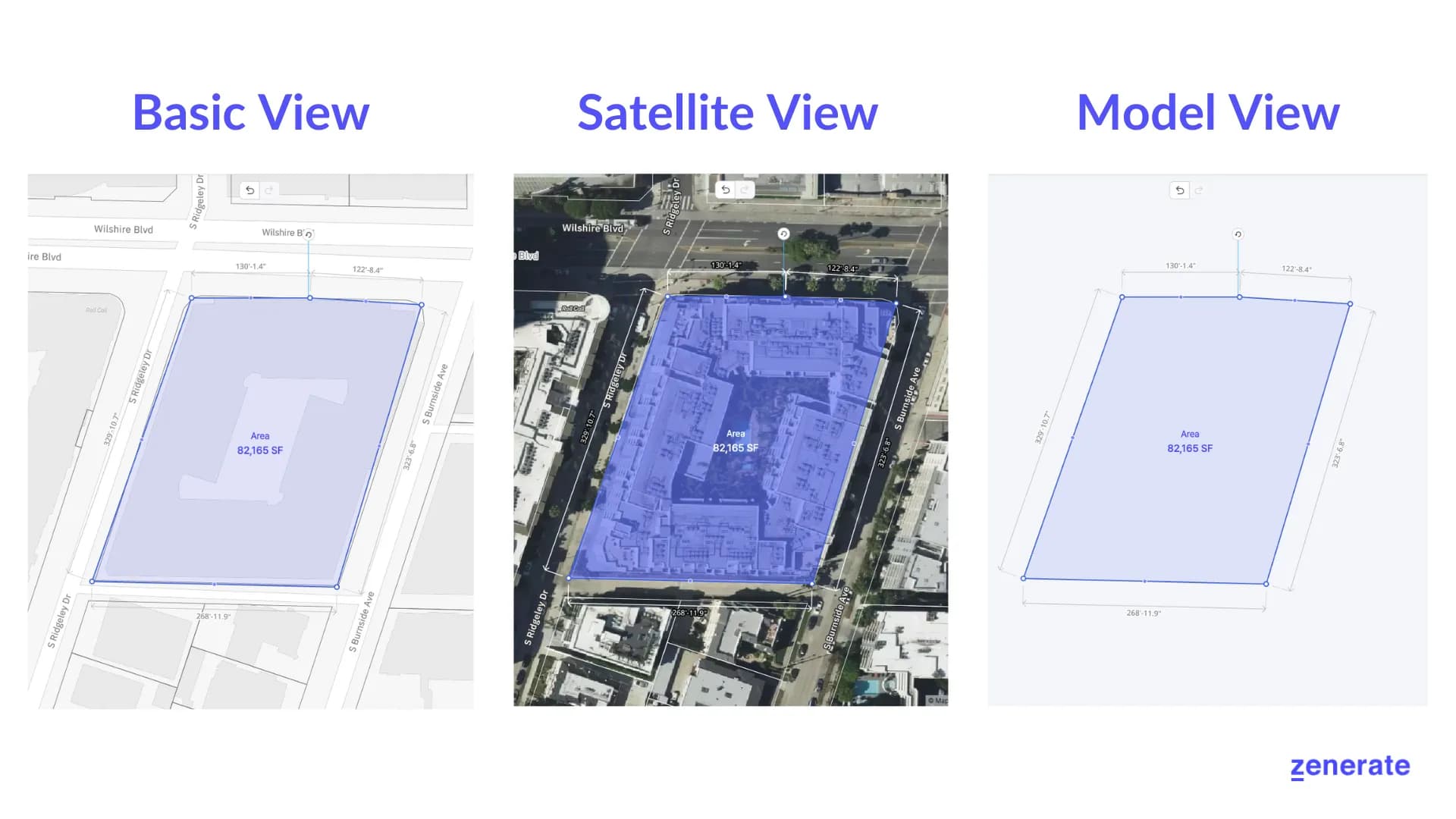
Zenerate offers three map views to suit different design needs:
Street View: Displays the surrounding street layout and massing around your site for better context.,Satellite View: Shows a real-time satellite image of your site and its environment, perfect for urban design projects.,Model View: A blank canvas that allows you to focus solely on your design without external clutter.
Zenerate also includes opacity controls to help you work more efficiently:
Map Opacity: Adjust the visibility of surrounding lots to better focus on your site, especially in complex urban contexts.,Lot Opacity: Fade out unused or irrelevant areas when working in satellite view to reduce visual clutter.

If you have a sketch or draft you'd like to build on in Zenerate, you can easily upload a background image to your site.
Zoom
Zenerate’s Zoom Tool allows you to zoom in and out of your design effortlessly. Simply use the scroll wheel on your mouse or the zoom in/out buttons to adjust your view to the desired level of detail.

Other Resources
Zenerate makes it easy for you to get precise with your designs. Book a demo with us and get a free trial for a hands-on experience today!
Book Demo + Get a Free Trial