Zenerate's newest product update is here, bringing more ways to visualize, export, and manage your feasibility designs directly inside the app. With the launch of AI Rendering, users can now turn modeling results into realistic renderings using Nano Banana Rendering, making it easier to communicate design intent, compare options, and present early concepts with more visual impact.
This update also includes improved view settings, new export formats, Unit Library enhancements, and added building label controls to support a smoother workflow from early test fit exploration to presentation-ready outputs.
🍌 AI Rendering Now Live!
You can now create realistic renderings directly from the modeling results generated in the Zenerate app using Nano Banana Rendering.
During the beta period, we are providing 100 free credits on top of your existing plan. This is enough to generate 50 renders.

How to Use : AI Render
1. Click AI Render in the header to open the AI Rendering panel.
2. In the Gallery, you will find preset rendering styles saved by default.
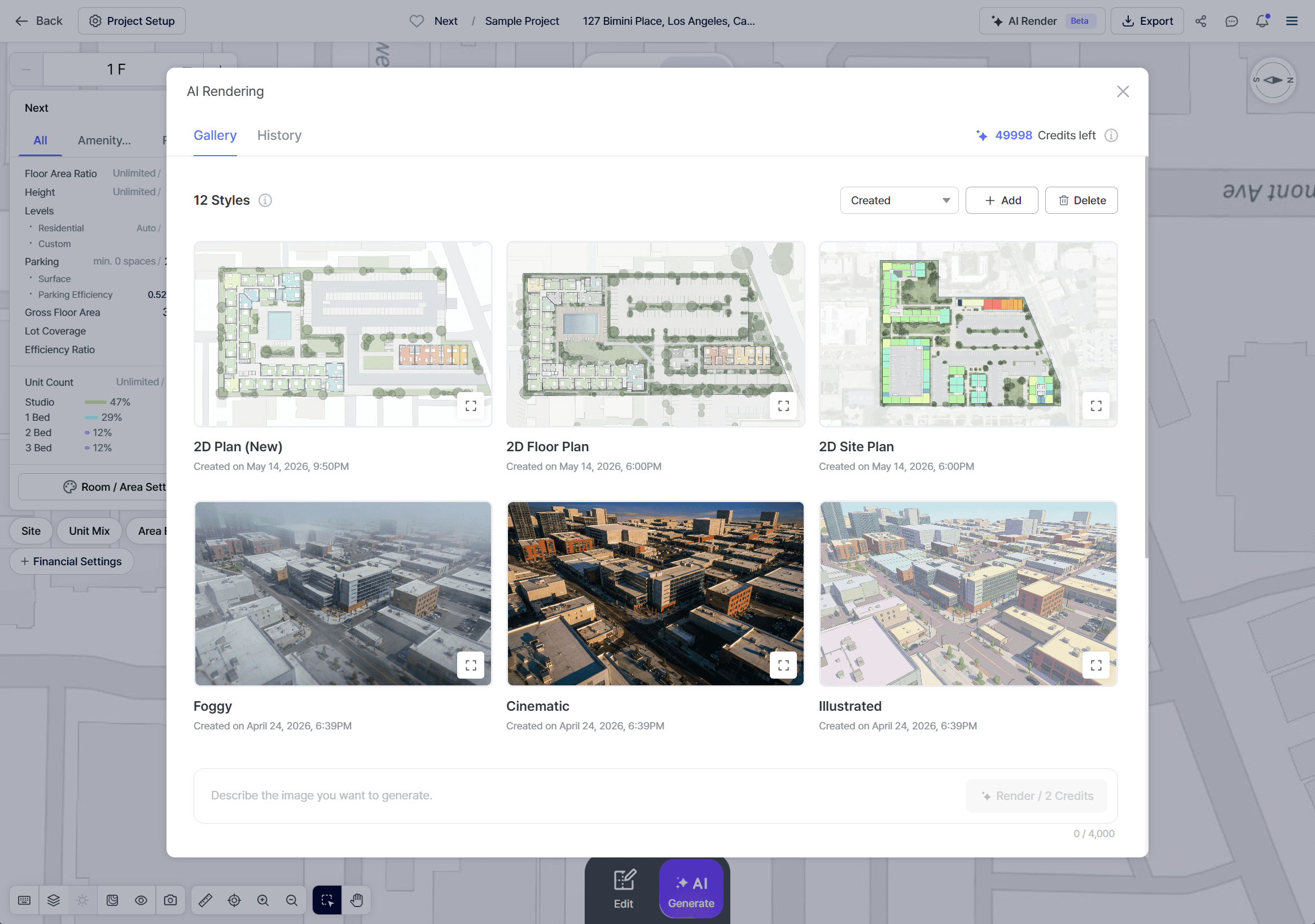
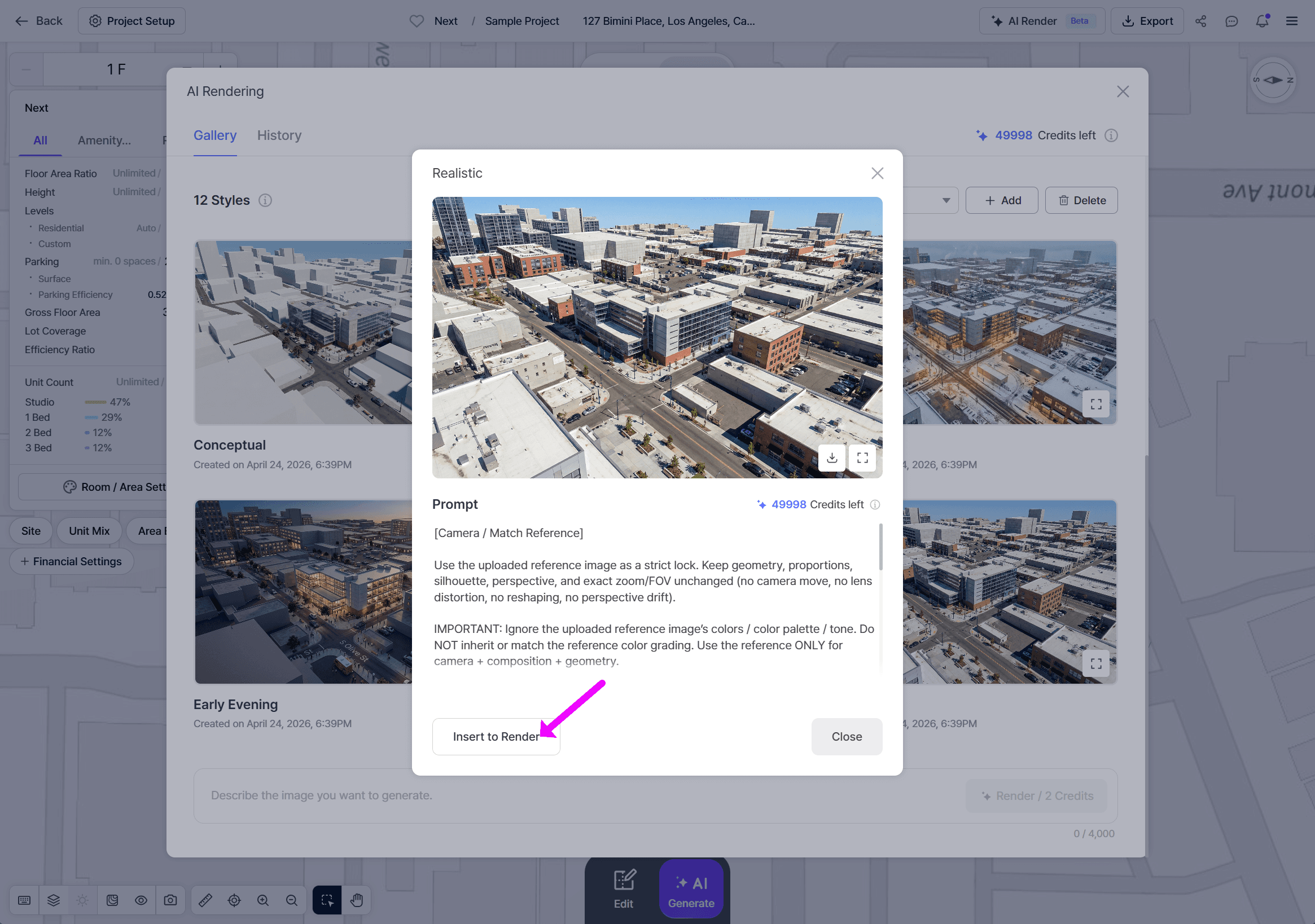
3. Select a style, click Insert to Render, and start rendering. You can also enter your own prompt and generate a render directly.
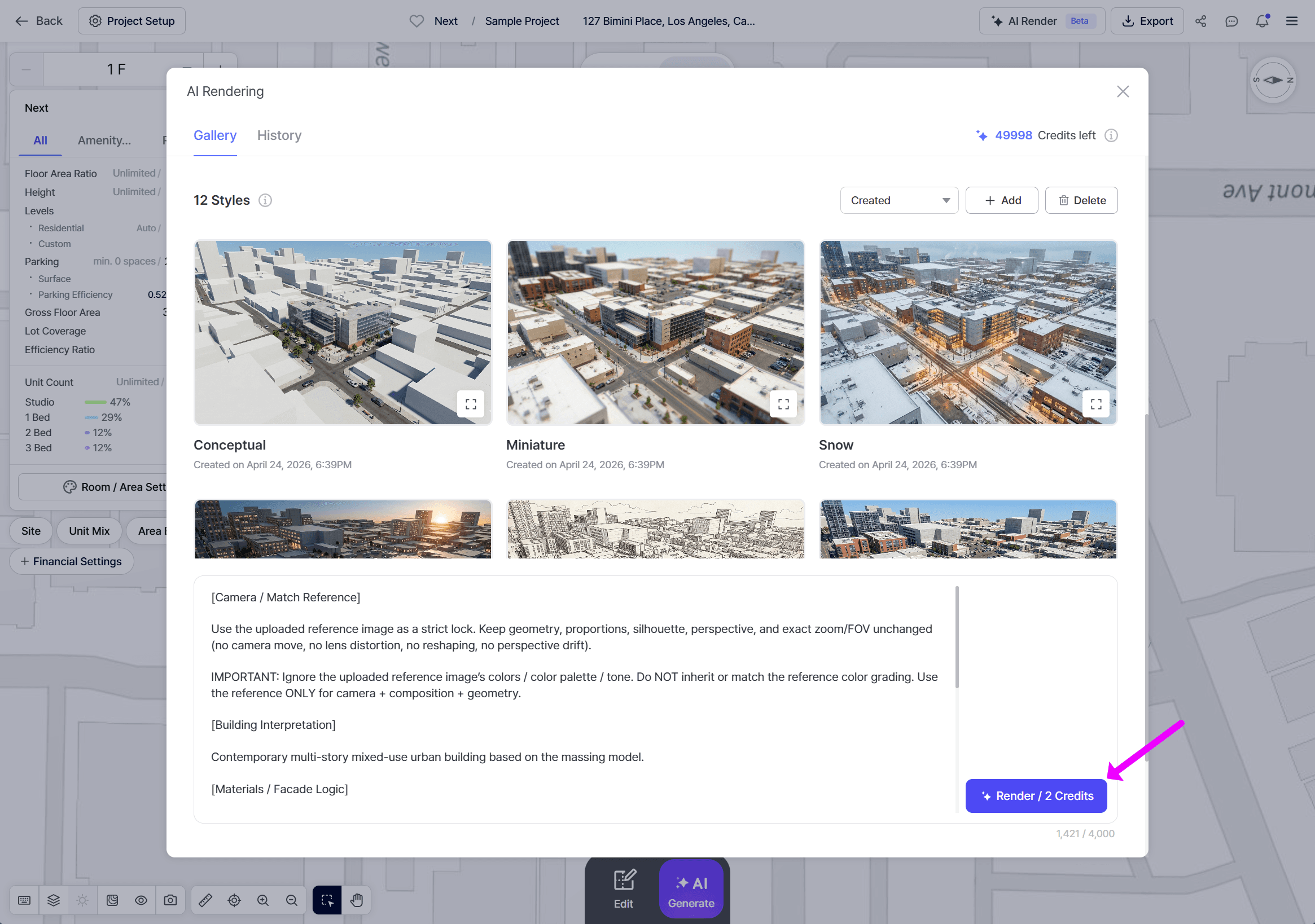
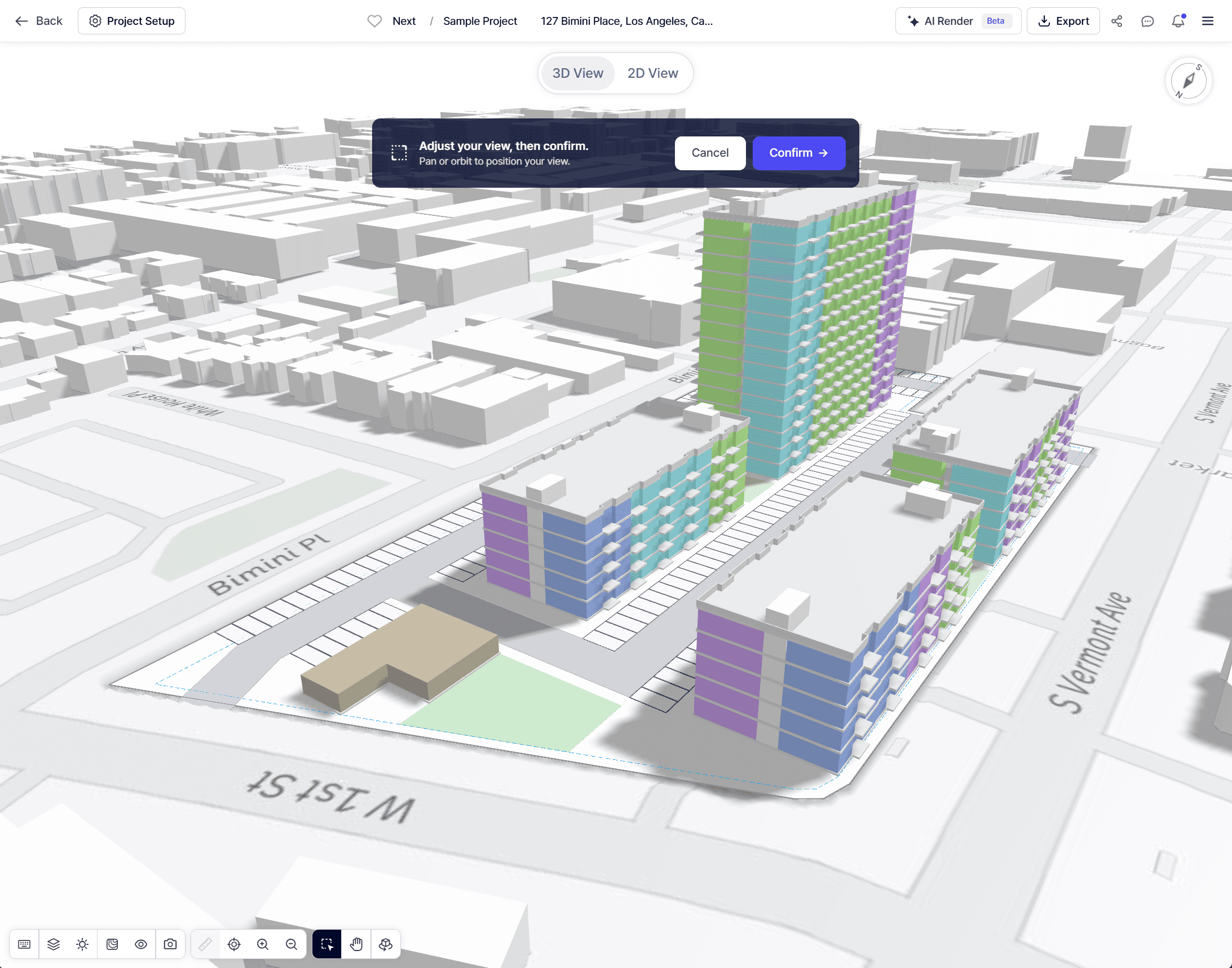
4. Before rendering, you will now confirm the view. You can change view, or whether to render from 2D or 3D image.
5. Once the render starts, you can track its progress in the Render Queue.
6. When the render is complete, you will receive a notification. Click the notification to view and download the generated image.
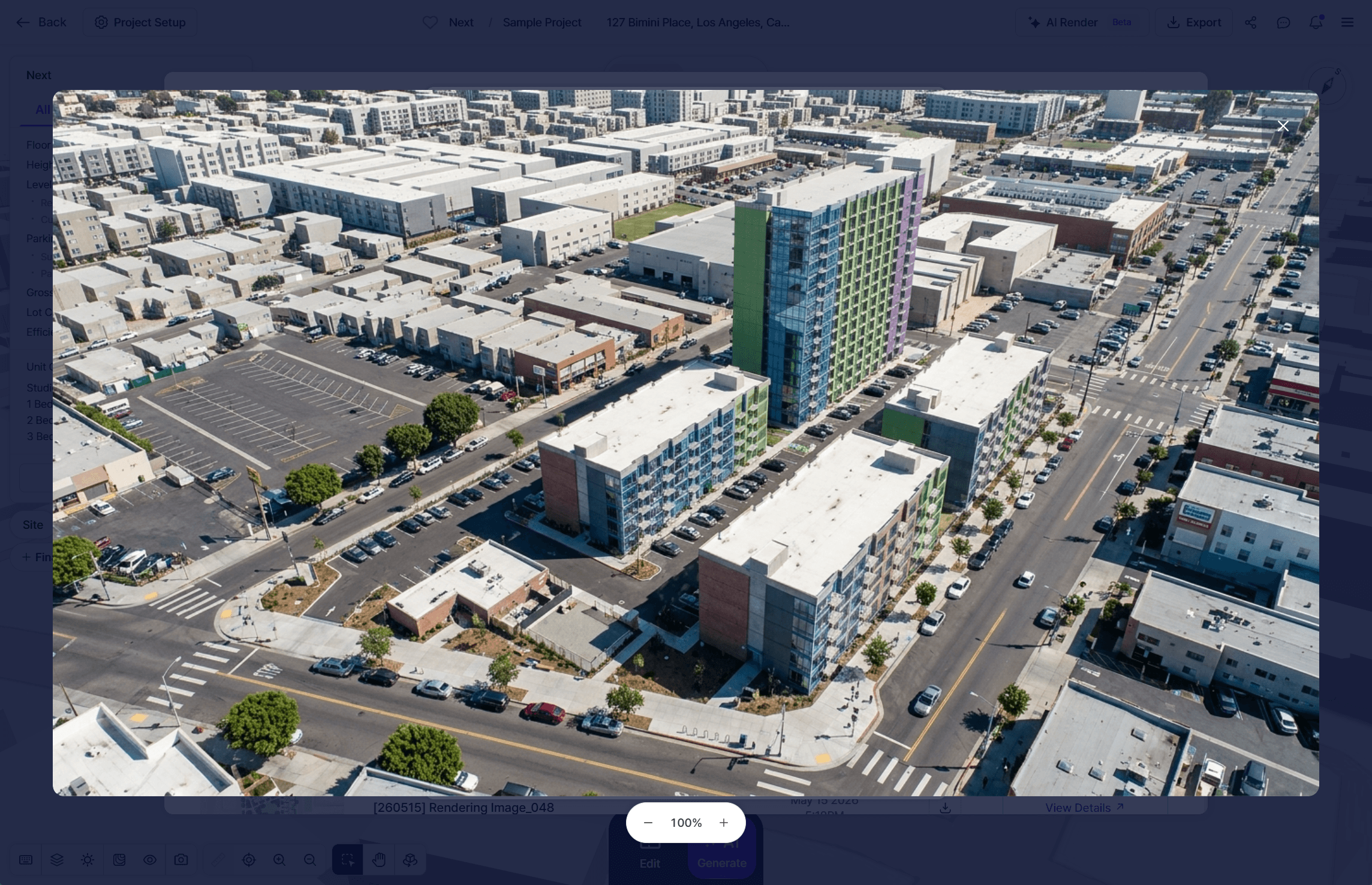
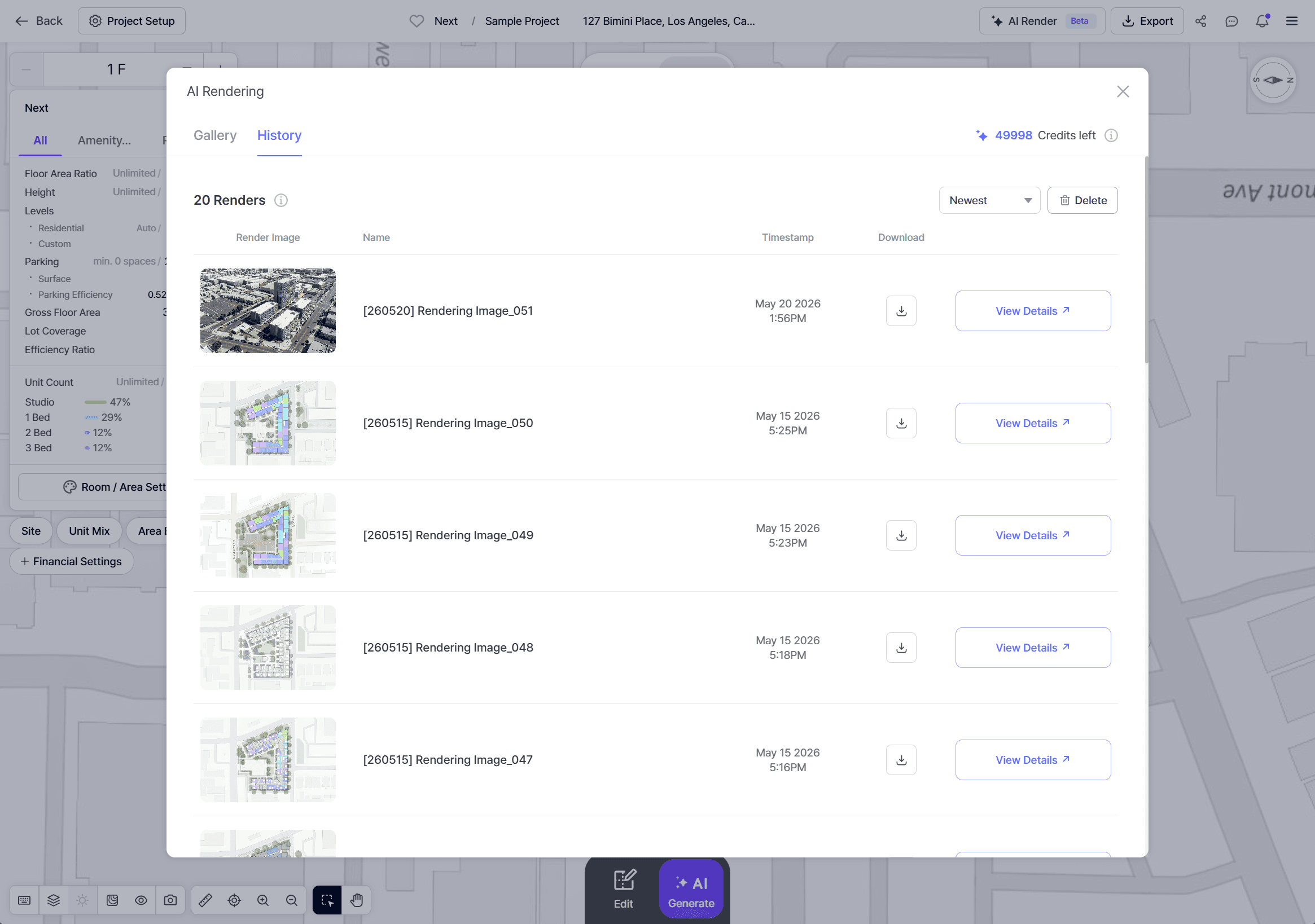
7. In Render History, you can review all previously generated renders and prompts.
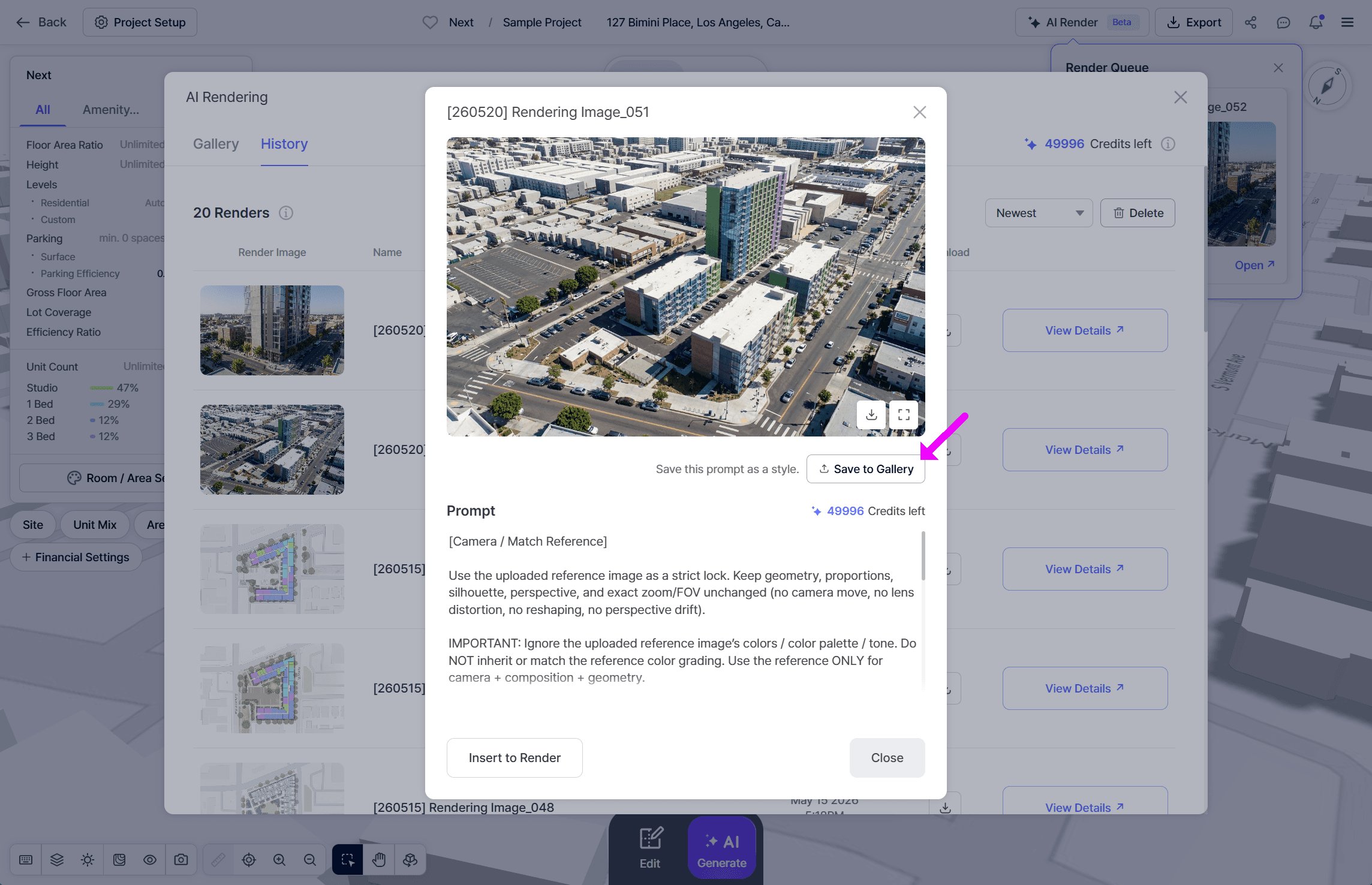
8. If you like a specific prompt, click View Details and select Save to Gallery to save it for future use.
Notes
• If you need more credits, please contact us through Tidio Chat or at support@zenerate.ai.
• Rendering Tip: To preserve the original massing, floor plan, or geometry without modification, we recommend clearly stating this in your prompt.
🖼️ View Settings
.gif)
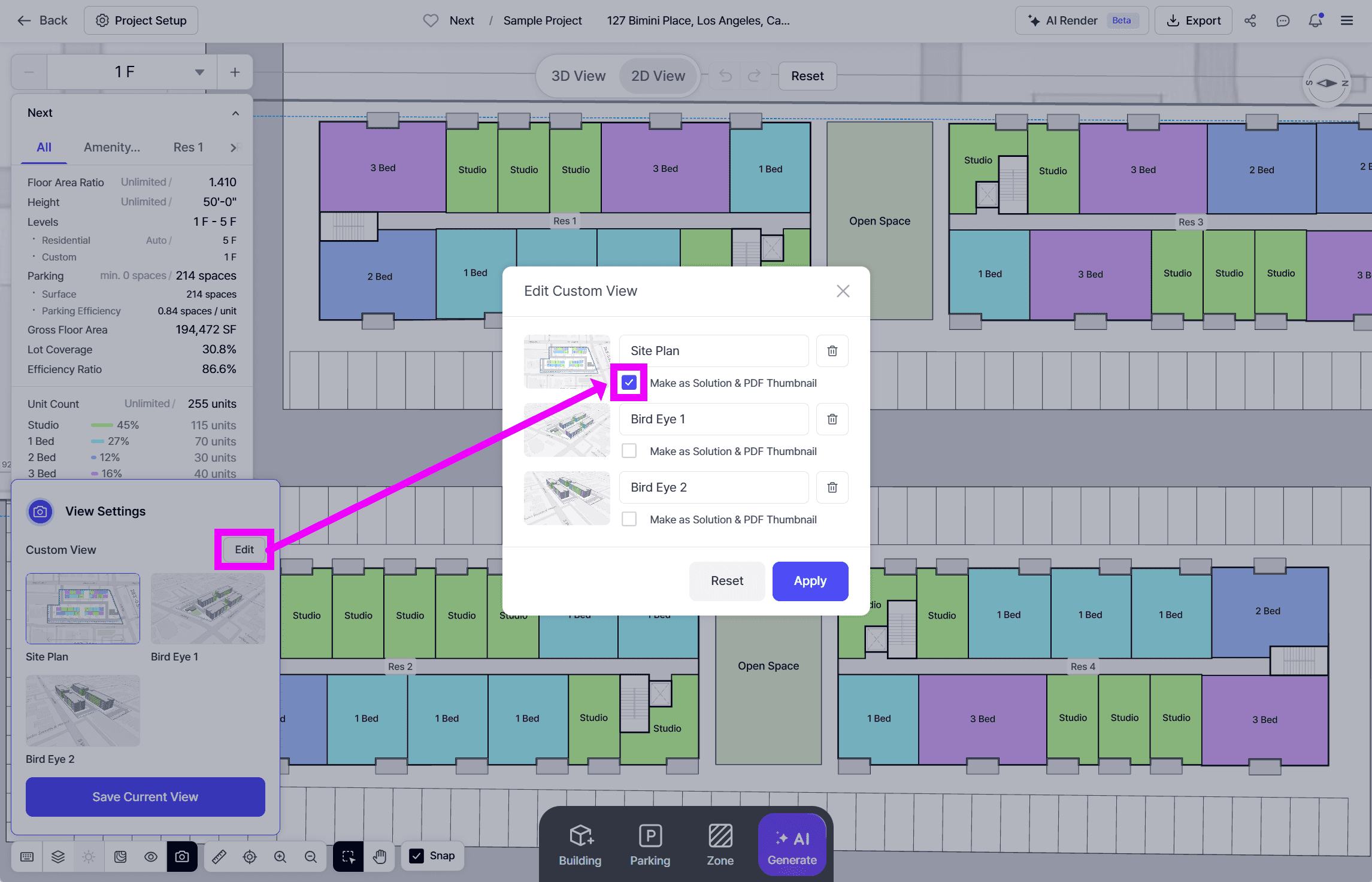
You can now save specific 2D or 3D views from the Map Toolbar and reuse them later.
When you select Make as Solution & PDF Thumbnail, the saved view will be applied to:
• The thumbnail shown in the Solution List
• The cover image of the exported PDF
📦 OBJ, GLB, and JPG Export
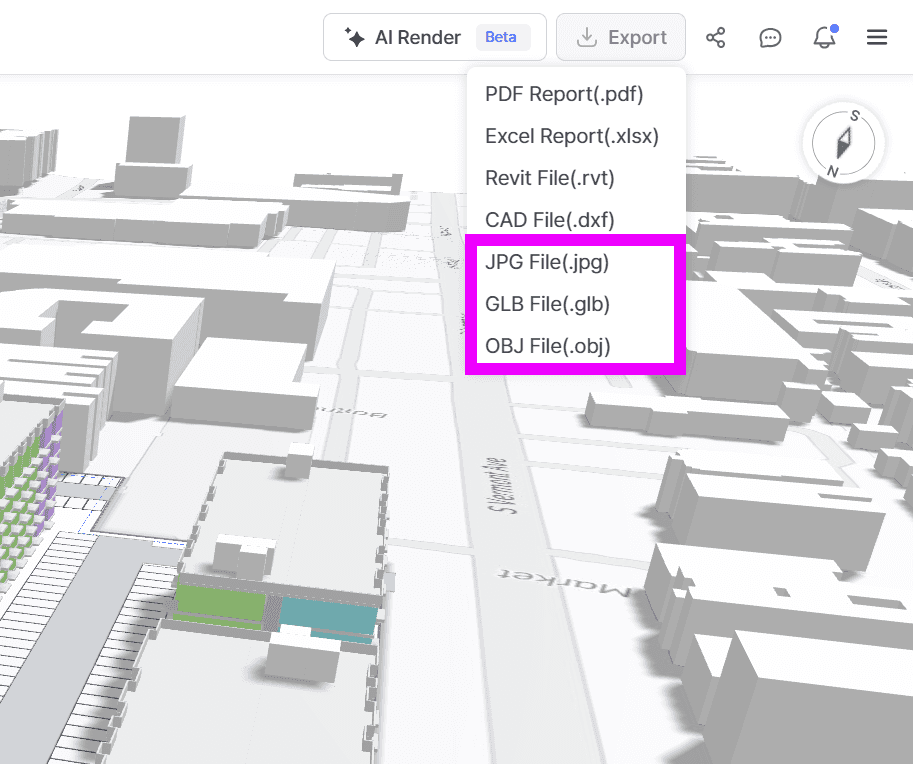
Export support has been added for the following file formats:
• OBJ
• GLB
• JPG
Click Export, and the selected file will be downloaded immediately.
🏠 Unit Library Improvements
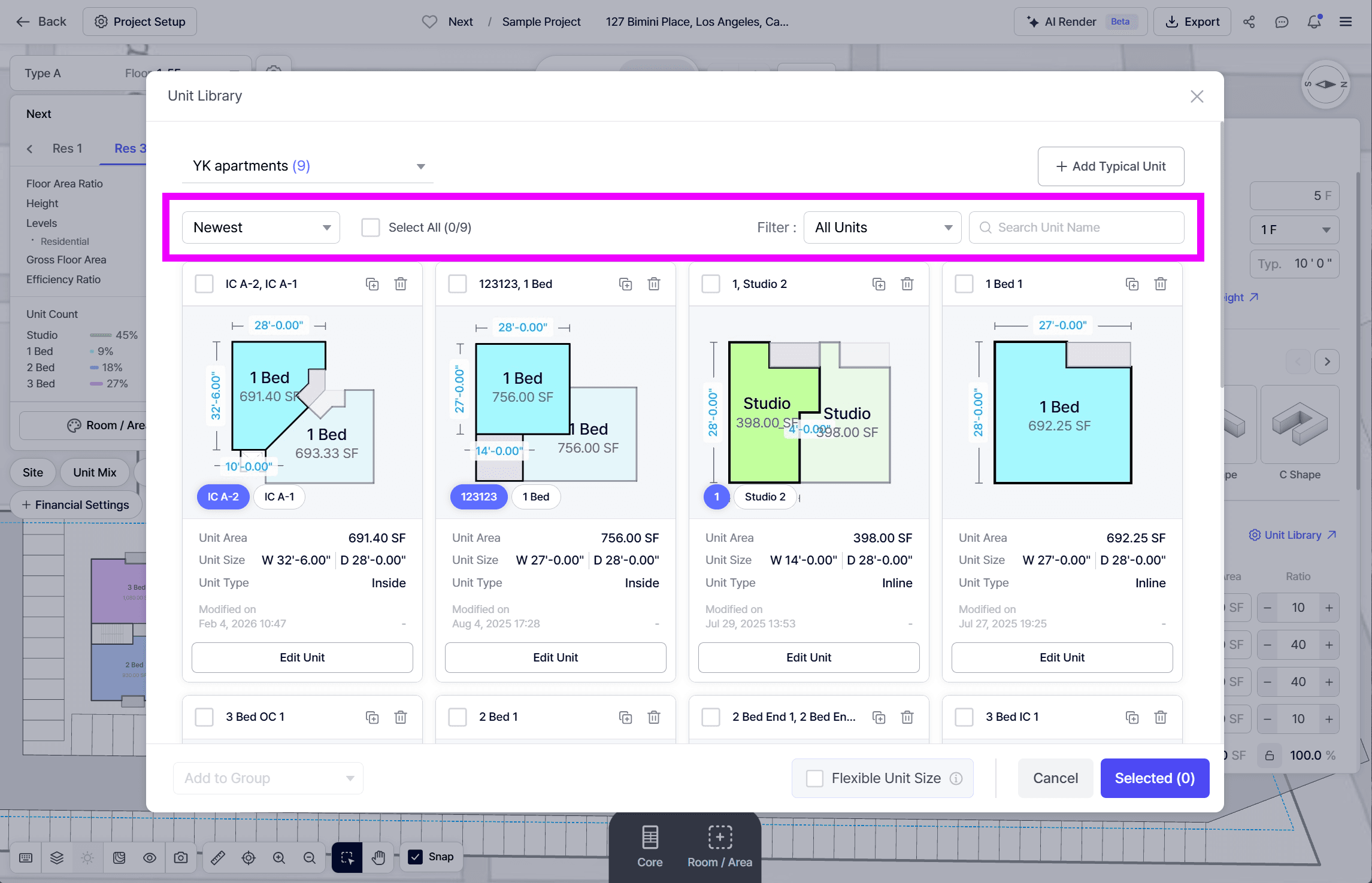
The Unit Library has been improved to make unit management easier.
New improvements include:
• Search by unit name
• Search by creator
• Sort functionality
• Creator information
• Created time information
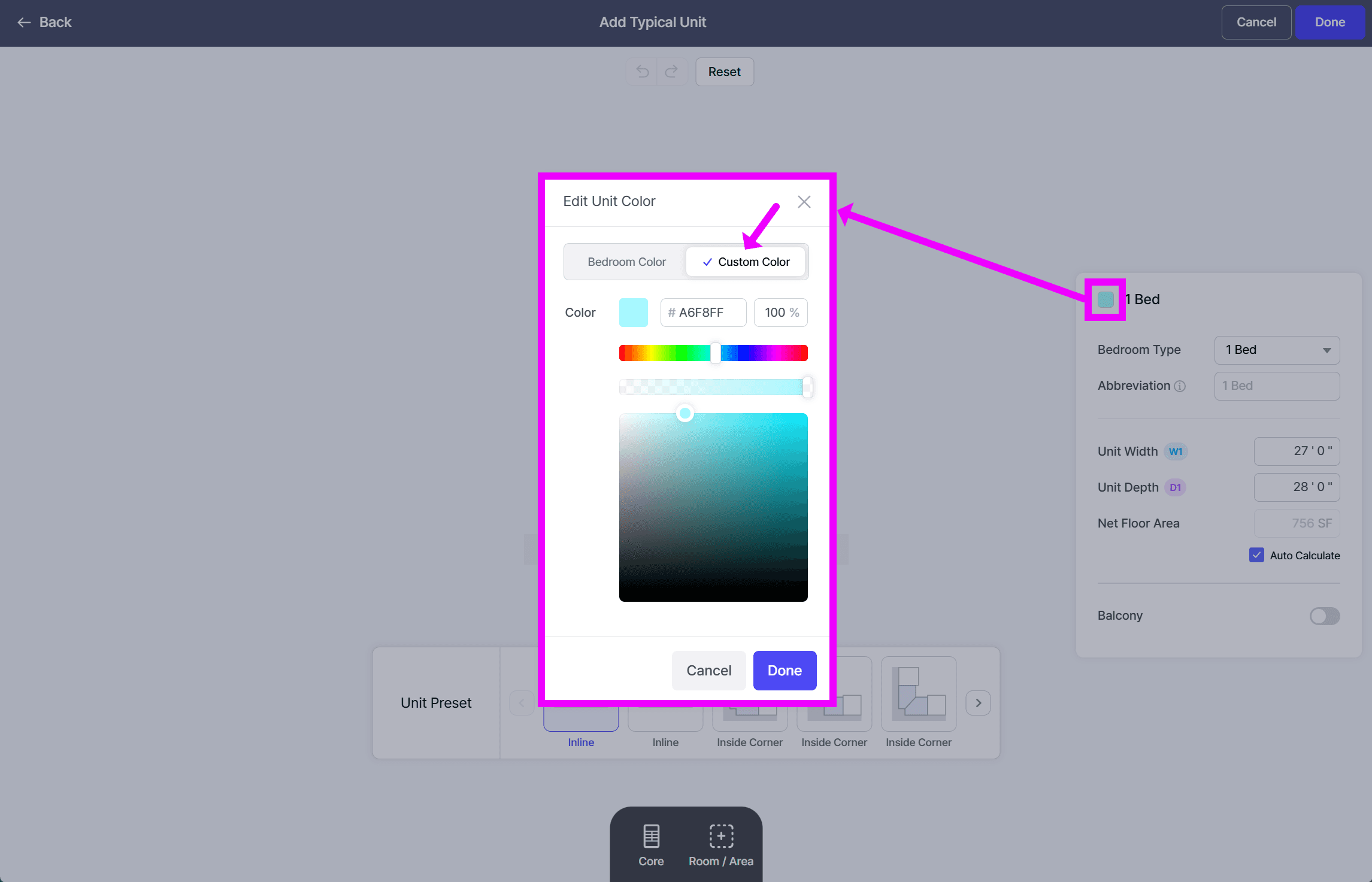
In addition, the Typical Unit edit panel now supports custom Unit Color settings.
🏷️ Building View Menu Added
A new Building View Menu has been added to the Map Toolbar.
You can now turn Unit / Room / Area Name and Area labels on or off separately in the 2D view.
.gif)
You can find these options under:
Map Toolbar → Building View Menu
New options include:
• Unit / Room / Area - Name
• Unit / Room / Area - Area
If you encounter any errors while using our product, or have any questions/feedback feel free to email us at product@zenerate.ai
Explore What Zenerate Can Do
If you would like to discuss how Zenerate could support your feasibility or land development workflow, book a demo below to start the conversation.
Book a Demo + Start a Free Trial