Zenerate offers surface parking layout options; Surface Parking Lot, and Driveway with/without Parking (Stalls). You can instantly generate a parking layout by drawing a lot boundary or draw driveways with parking stalls to make your own layouts with drag-and-drop editing tools.
Here is a step-by-step guide to both surface parking layout types and their editing features.
Surface Parking Lot
Users can add surface parking lot by following these steps:
1. Click on Parking in the bottom menu bar.
2. Select Surface Parking Lot.
3. Draw the parking lot boundaries on your site.
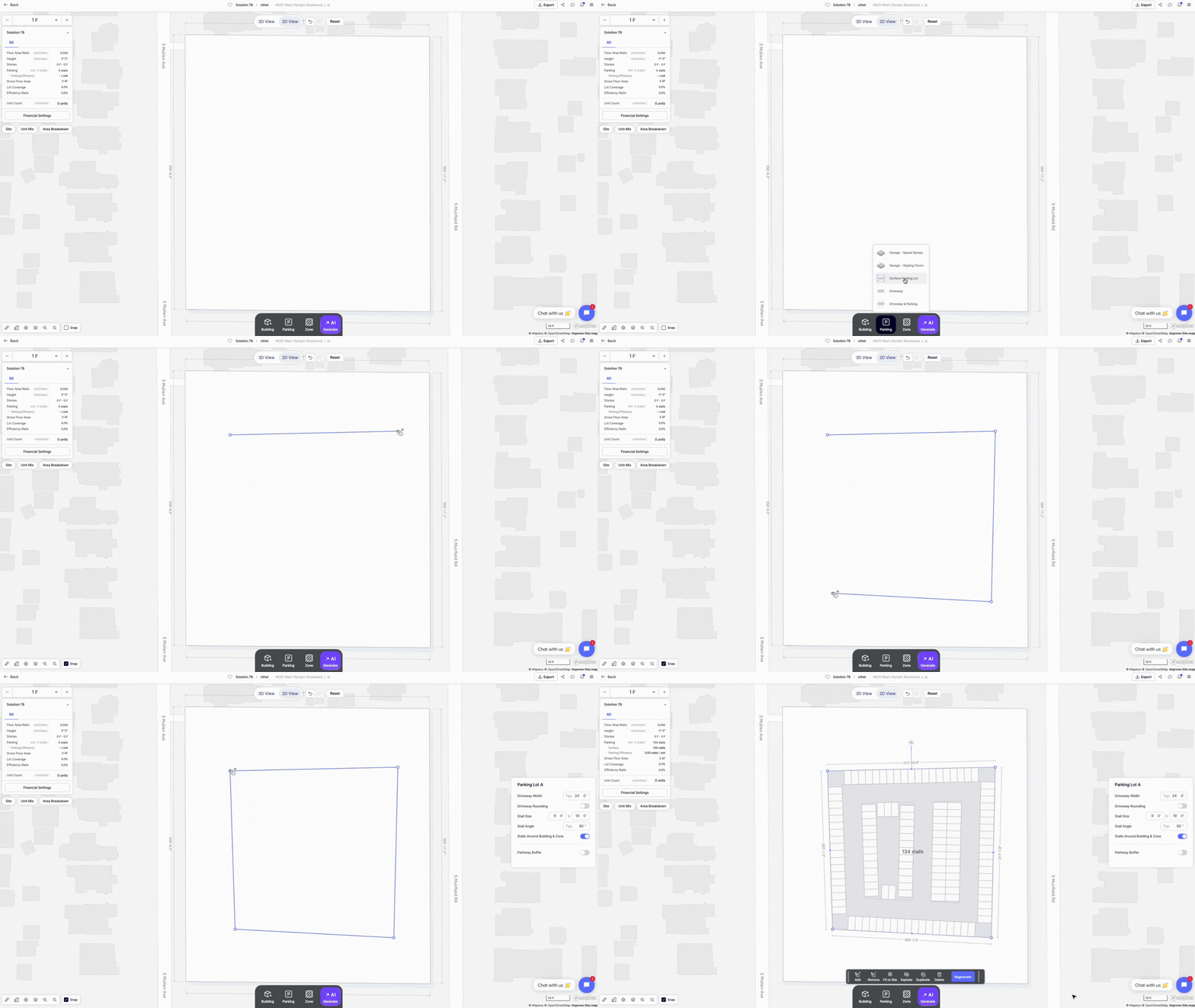
Once added, the parking layout can be refined using the popup menu with the following features:
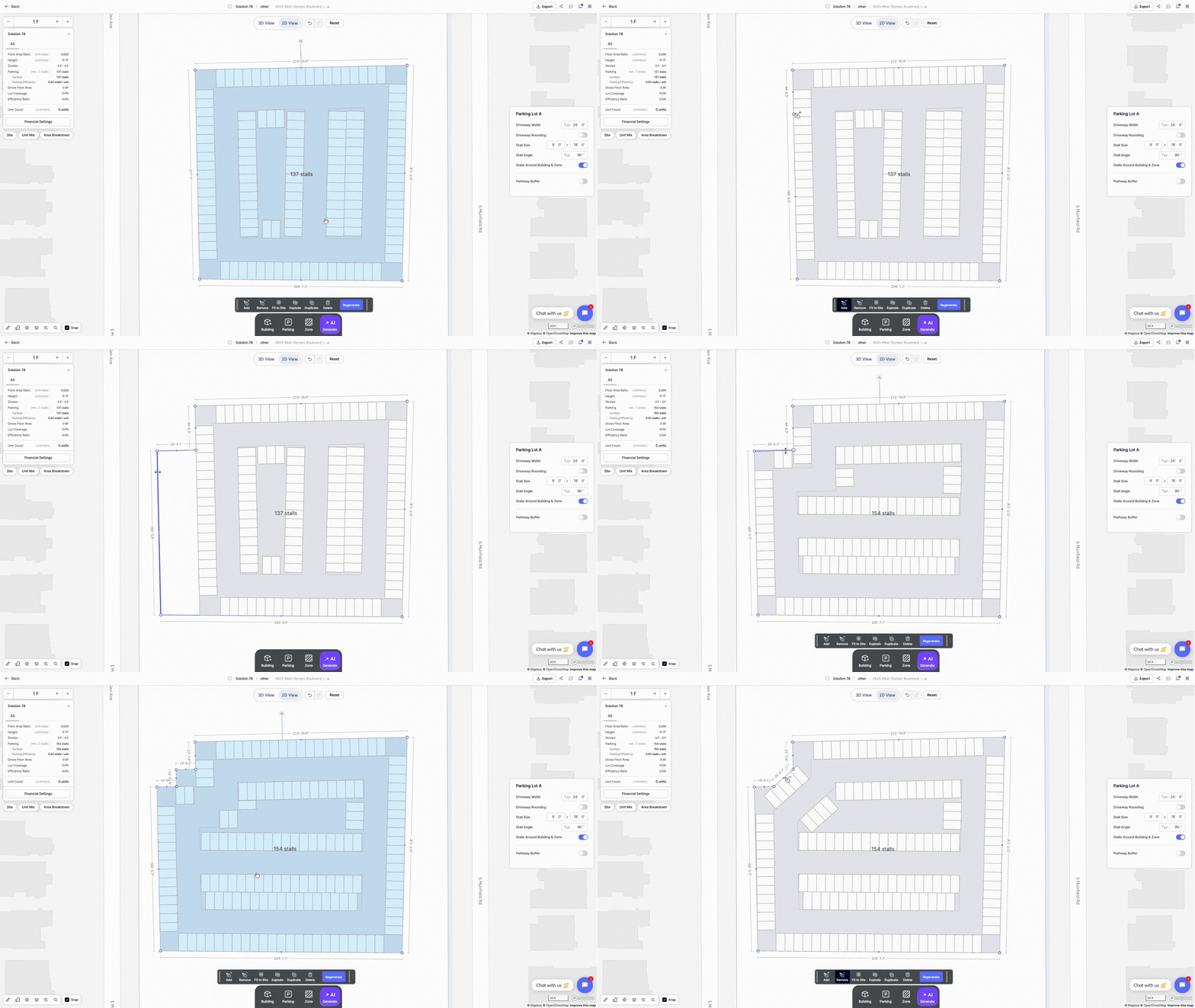
Add and Remove Points
• Add Point: Click on a boundary line to insert a new midpoint and adjust the shape.
• Remove: Select an existing point to remove it and adjust the shape.
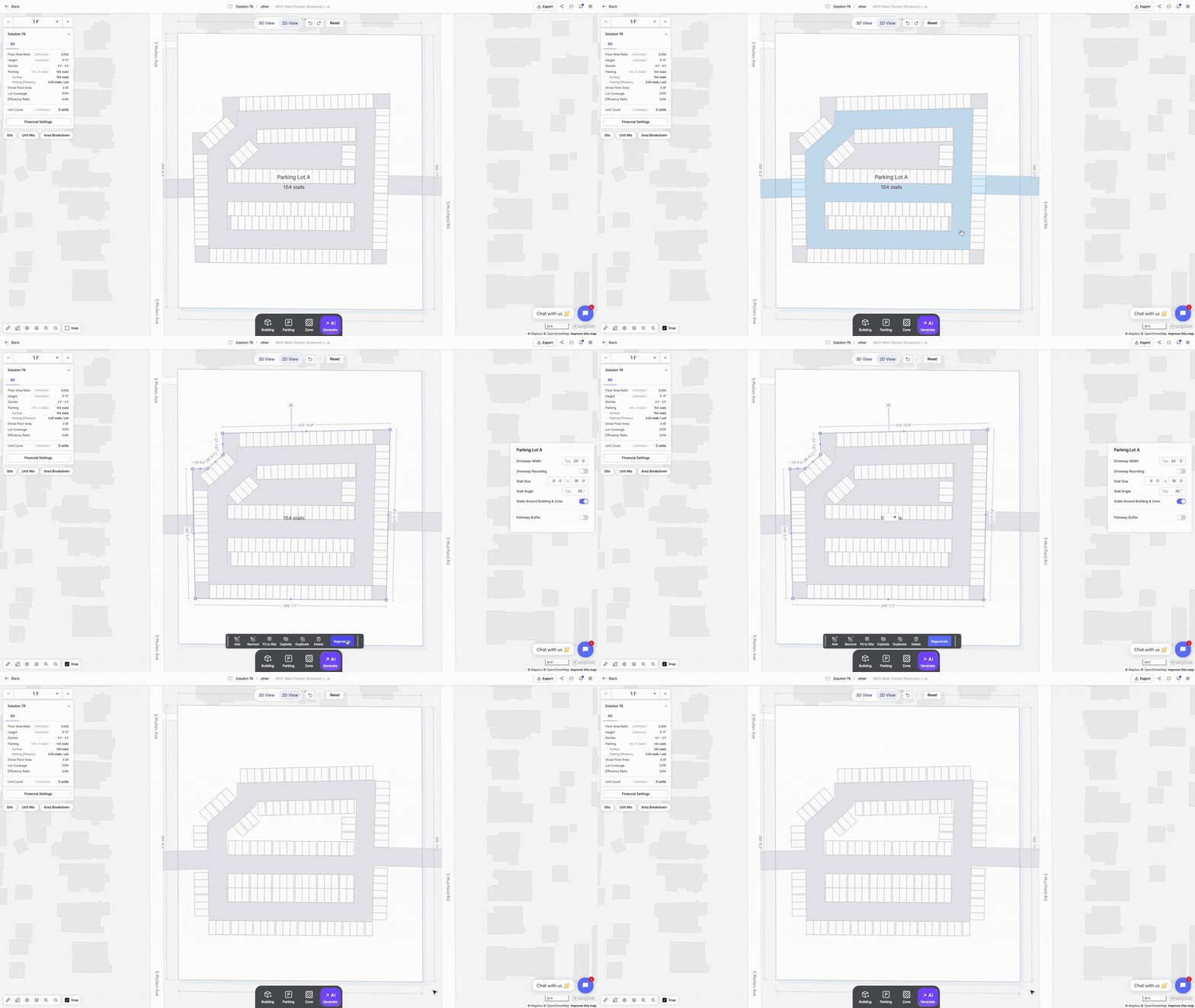
Fit To Site
Click Fit to Site to automatically extend the parking layout to fill the available lot area.

Explode
Use Explode to merge any overlapping driveways with the surface parking lot. This action converts the surface parking lot into a Driveway & Parking layout so users can modify driveway network.
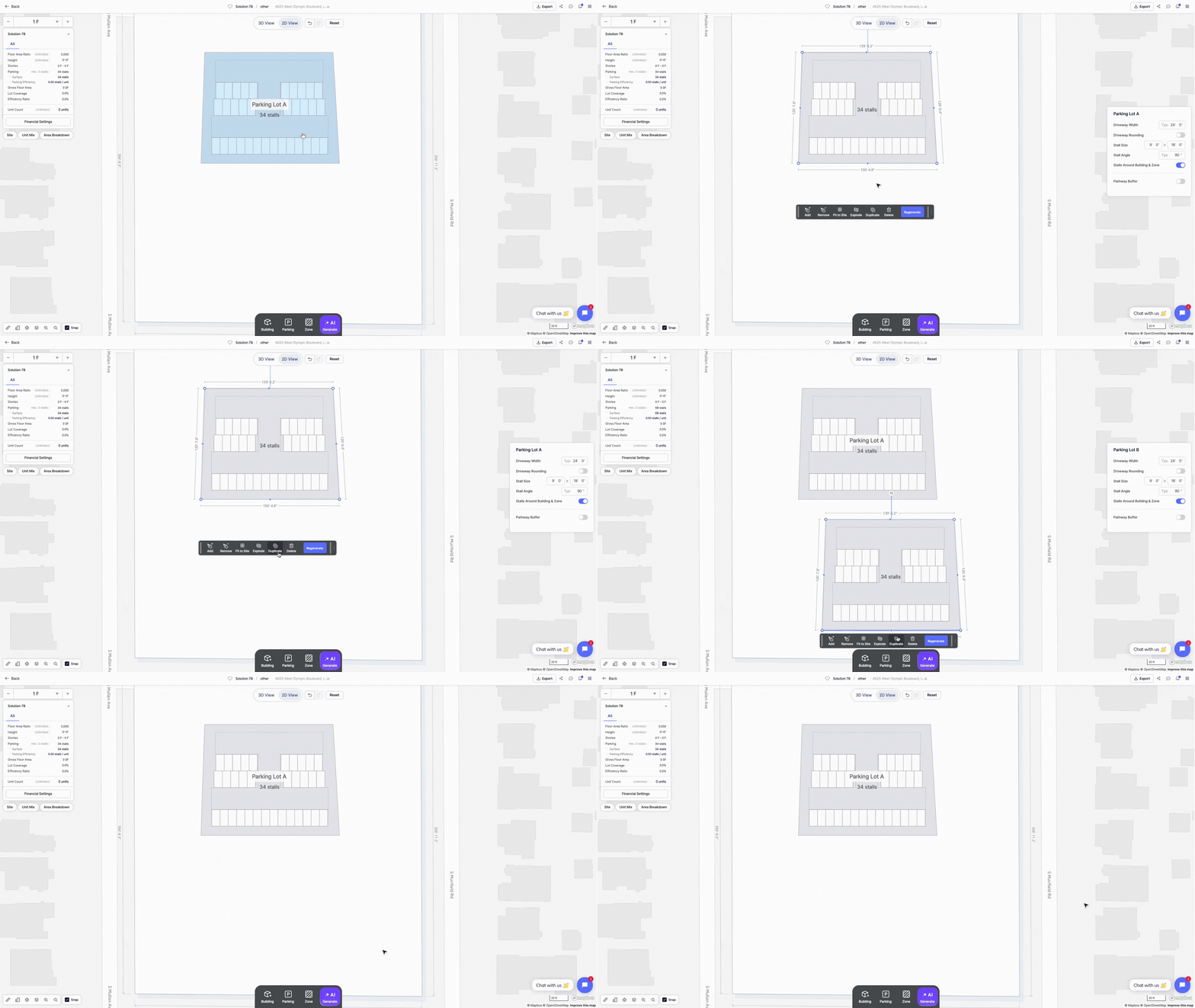
Duplicate and Delete
• Duplicate: Clone the selected layout.
• Delete: Remove the selected layout.
Driveway & Parking
The Driveway & Parking and Driveway options share similar tools, with one key difference:
• Driveway & Parking includes parking spaces along the road.
• Driveway only generates a drive path without attached parking.
To create either layout:
1. Click on Parking on the bottom menu bar
2. Select Driveway & Parking or Driveway
3. Draw a line on your site to generate a layout

When the layout is selected, users would have access to the following features.
Add or Remove Parking
To add a new drive aisle or driveway branch:
1. Click on the Driveway element
2. Add or remove parking rows by clicking the checkmarks on either side.

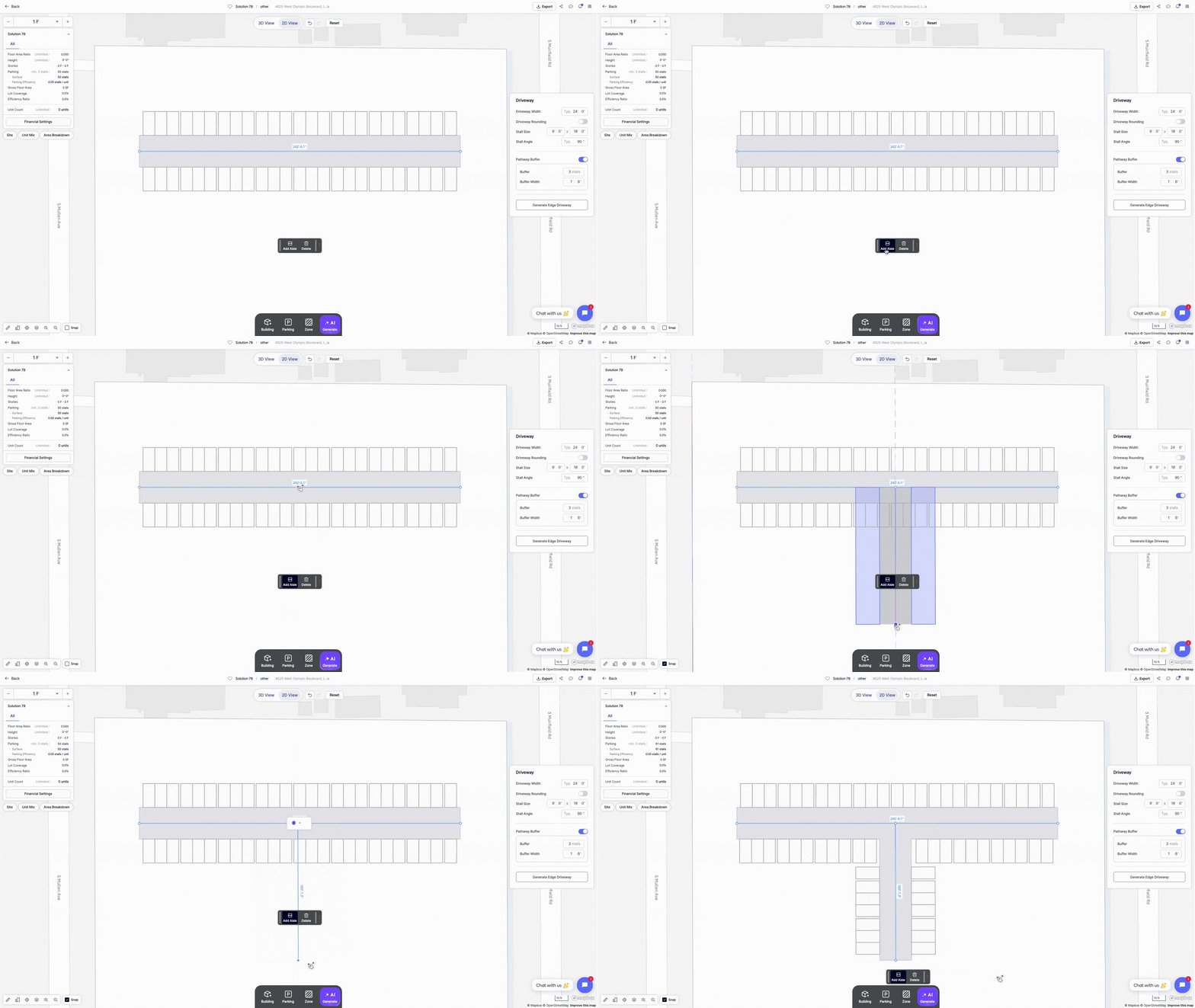
Add Aisle
To add a new aisle or driveway branch:
1. Select the Driveway
2. Click Add Aisle from the menu
3. Draw a line for the new branch
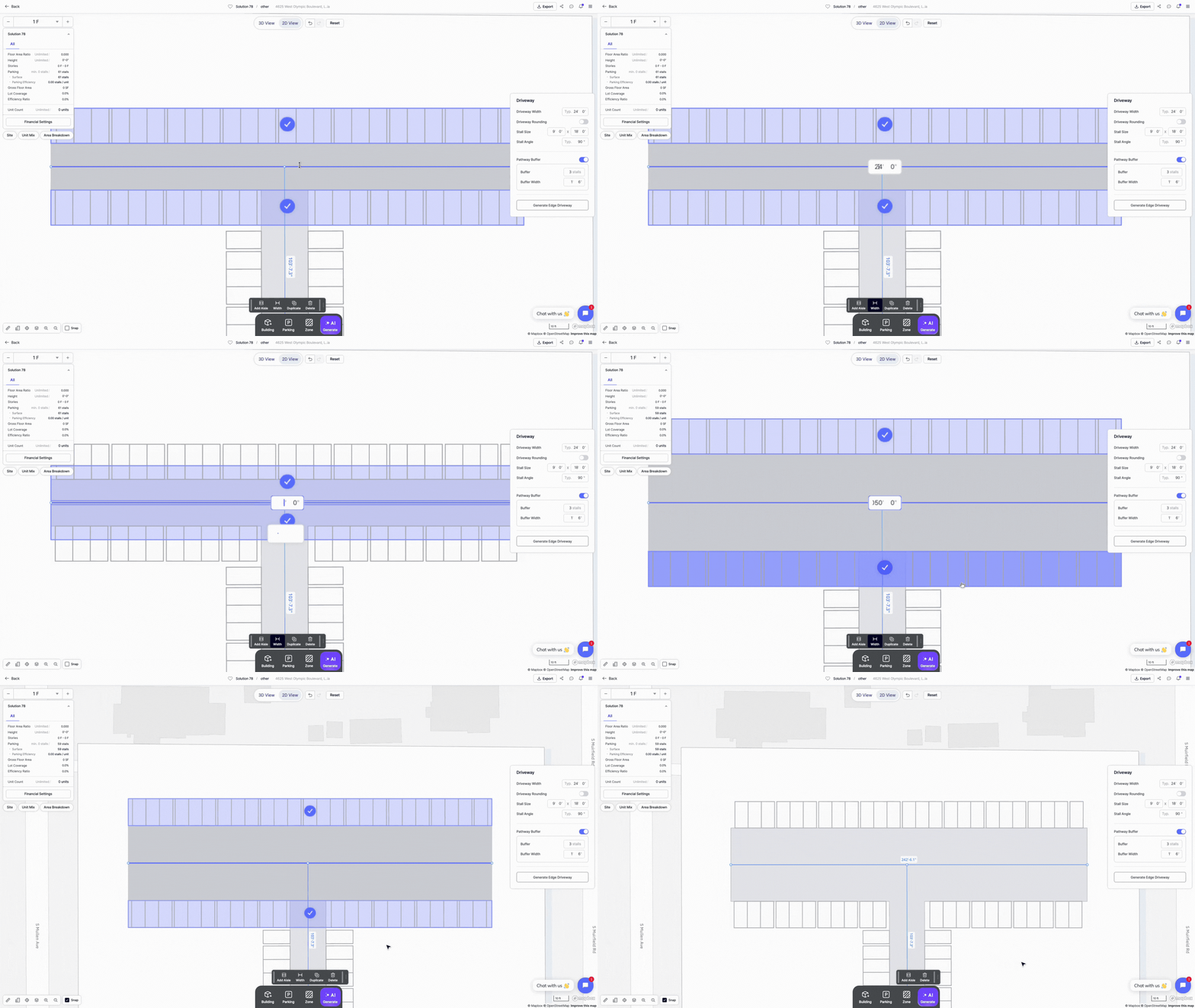
Width
To change the driveway width:
1. Select the Driveway
2. Click Width in the popup menu
3. Enter a new width in the input field on the driveway
Duplicate and Delete
• Duplicate: Replicate the selected driveway layout.
• Delete: Remove the selected element.

Explore What Zenerate Can Do
Looking to speed up your feasibility studies and streamline site planning?
Book a demo and get access to a free trial of Zenerate today.
Book a demo + Get a Free Trial