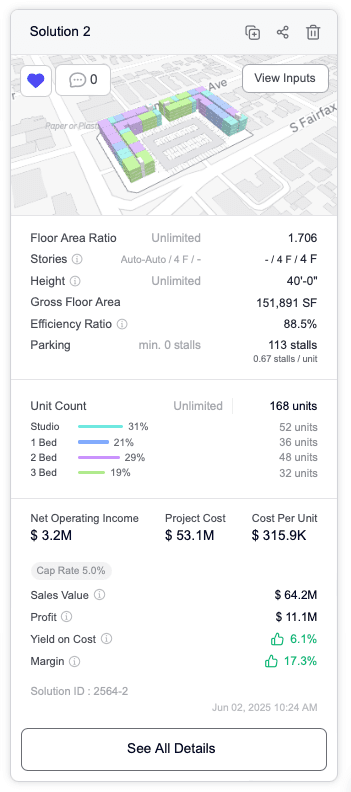
A Solution Card in Zenerate represents a specific building design option either generated automatically using AI or created manually. Each card contains key data and interactive features that help users analyze, manage, and collaborate on various site planning options.
Each Solution Card Displays:
• 3D model preview of the design
• Floor Area Ratio (FAR)
• Unit count
• Financial calculations (e.g., development costs, revenues, etc.)
These data points are critical for evaluating the feasibility of each concept and comparing multiple solutions side by side.
Features on a Solution Card
Rename a Solution
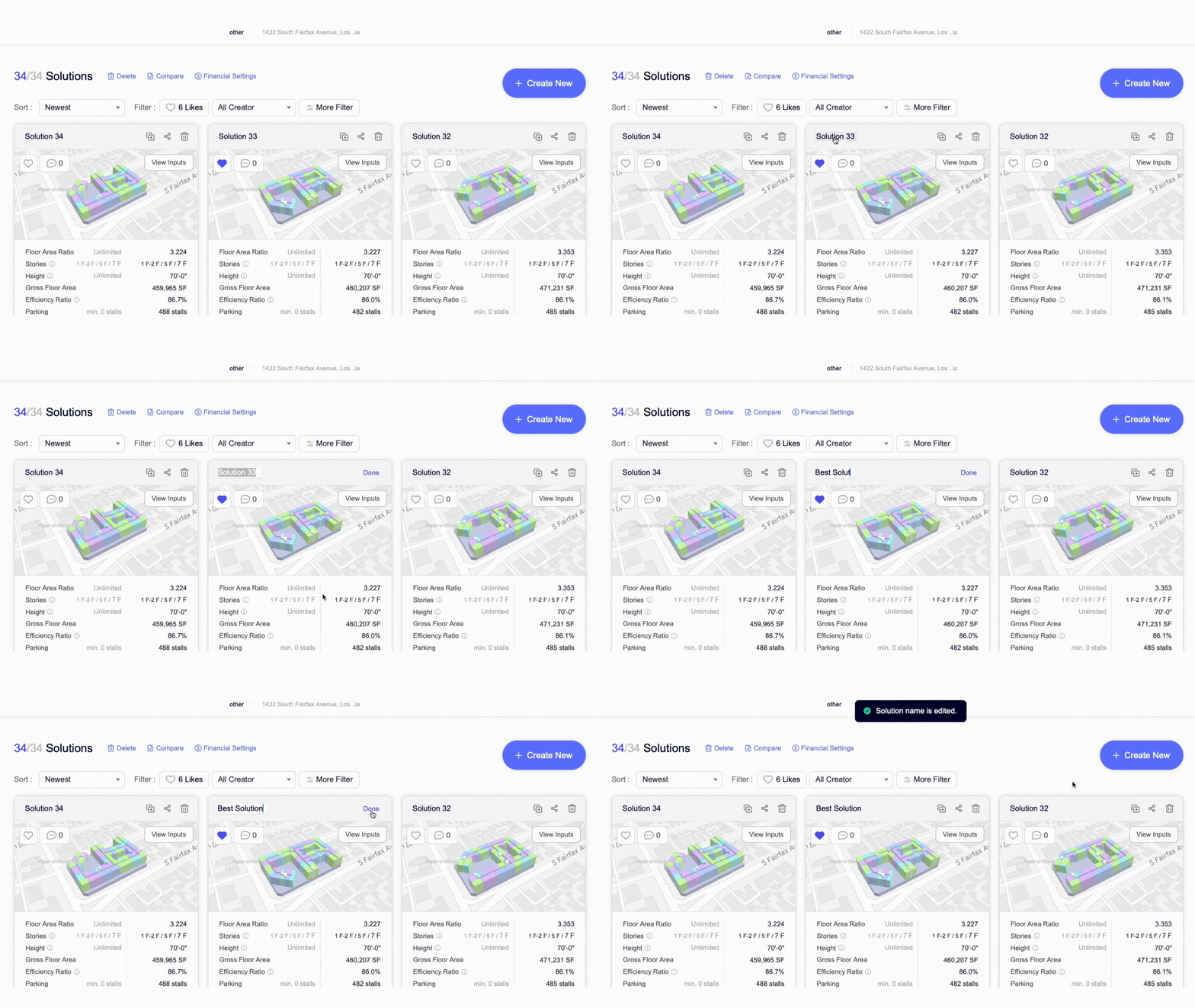
To keep your project workspace organized, you can rename each solution:
1. Click on the name of the Solution Card
2. Enter the new name
3. Click "Done" to save
This is especially helpful when managing multiple concepts for the same site.
Duplicate a Solution
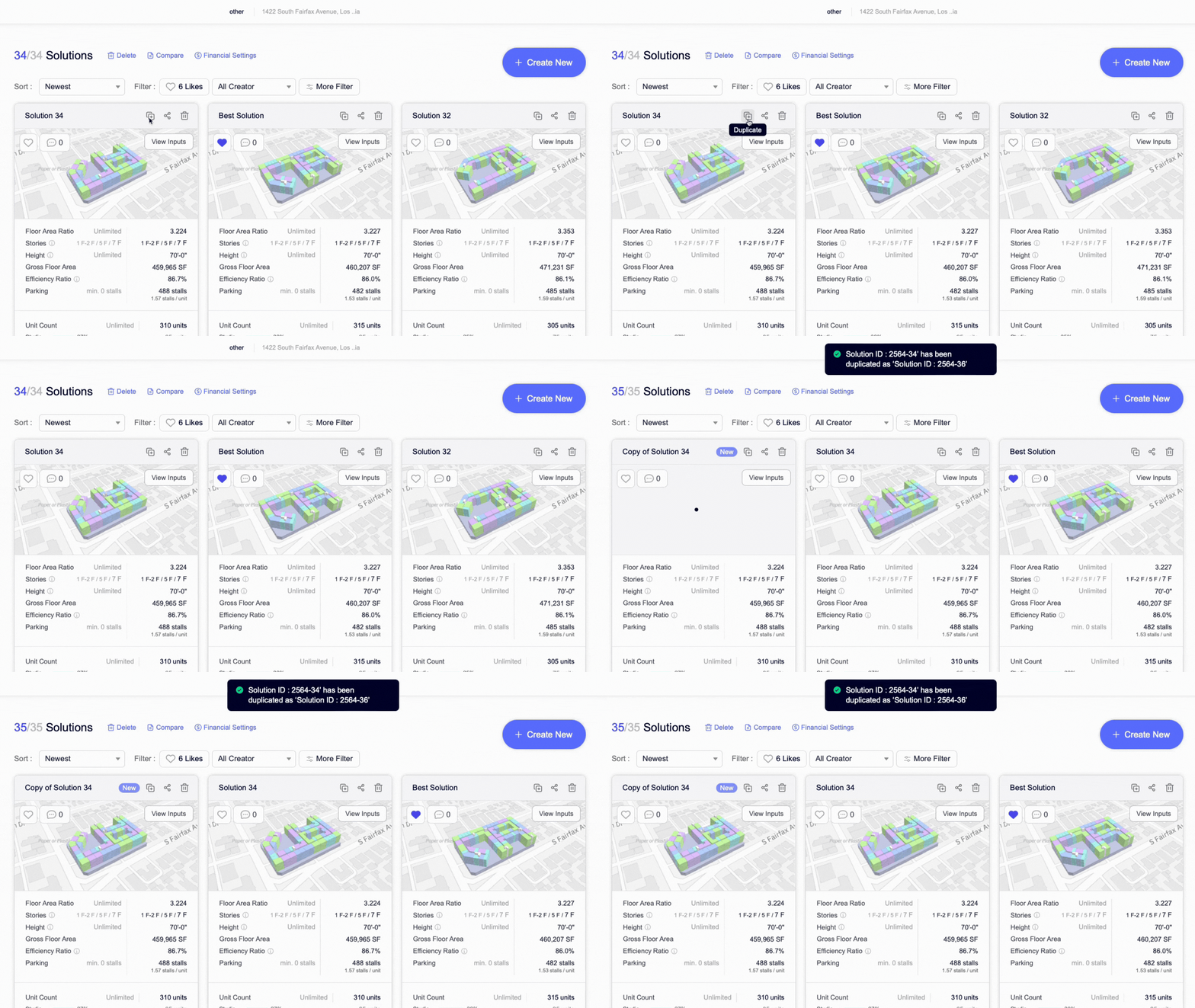
Duplicating a solution allows you to explore variations without starting from scratch:
• Click the plus (+) rectangle button on the Solution Card
• A duplicate will appear in your list with the same inputs and layout
Share a Solution
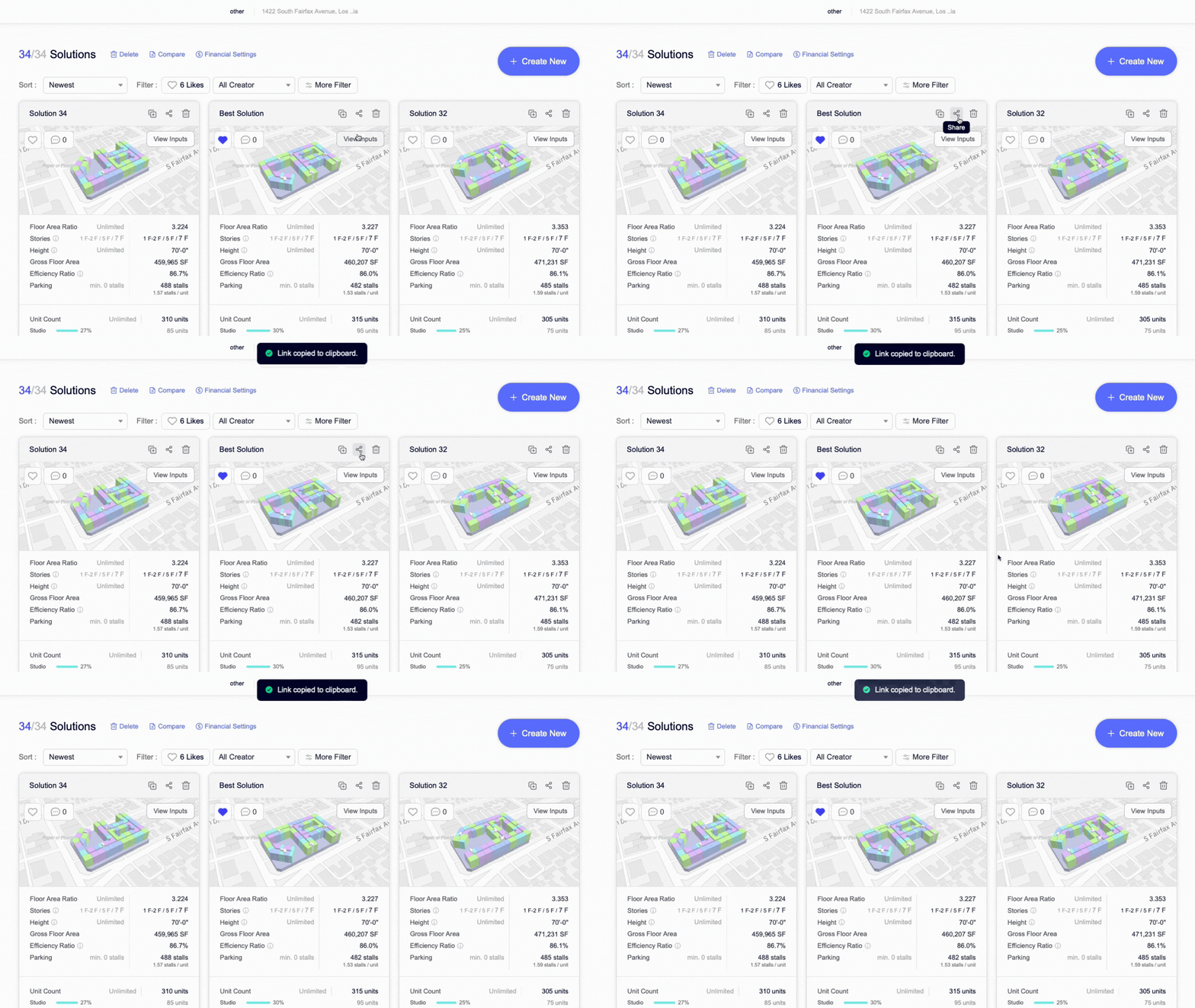
Zenerate makes collaboration seamless. To share a solution with other users:
• Click the Share button on the Solution Card
• A shareable link will be copied to your clipboard
• Share the link with team members, consultants, or external partners who have login access to Zenerate
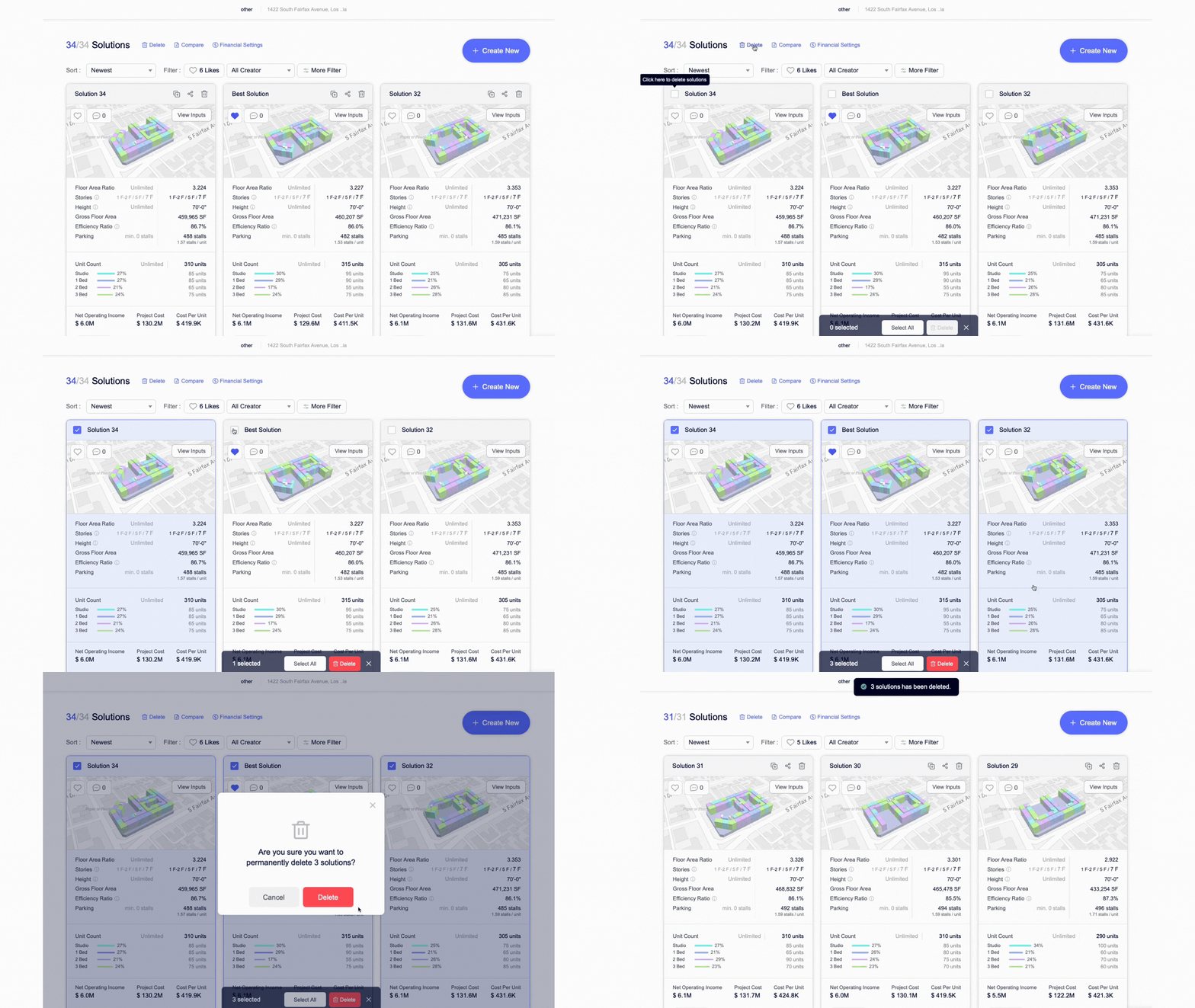
Delete a Solution
To remove a solution you no longer need:
• Click the trash can icon on the card to delete a single solution
• To delete multiple solutions, click the delete button at the top of the screen, select the solutions you want to remove, and confirm
Cleaning up unused solutions helps keep your project workspace efficient and focused.
Like or Bookmark a Solution
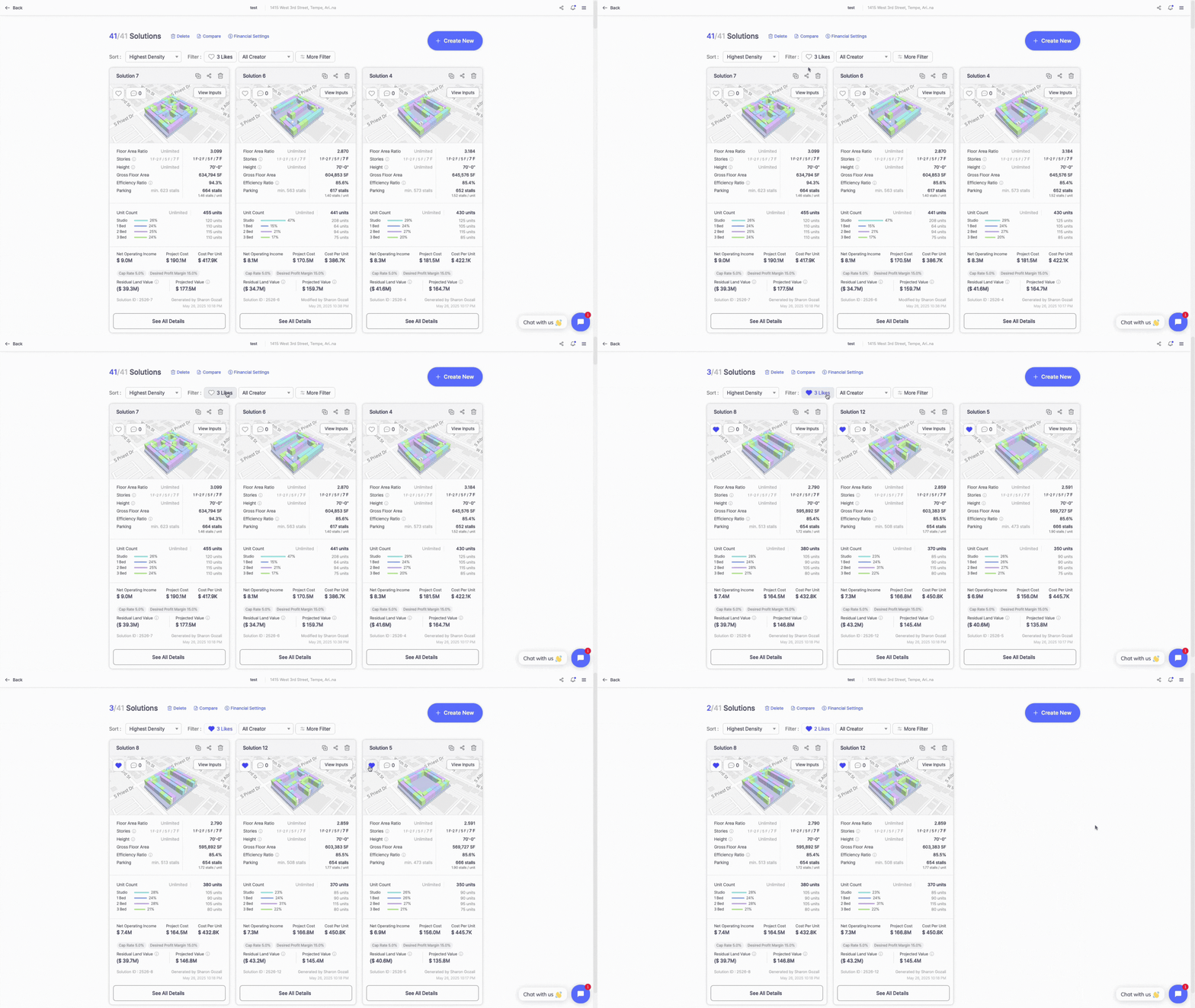
To highlight a solution you want to reference later:
• Click the heart icon
• When activated, the solution is marked as "liked" can be filtered out
Use this feature to quickly identify preferred options for further development or client presentations.
Comment on a Solution
Collaboration is built into every Solution Card. To leave feedback or notes:
• Click the chat bubble icon next to the like icon on the card
• Type your comment into the text field
• Use "@" followed by a team member's name to tag them
Comments are visible to all collaborators on the platform who have access to the solution, making it easier to keep communication context-specific.

View Design Inputs
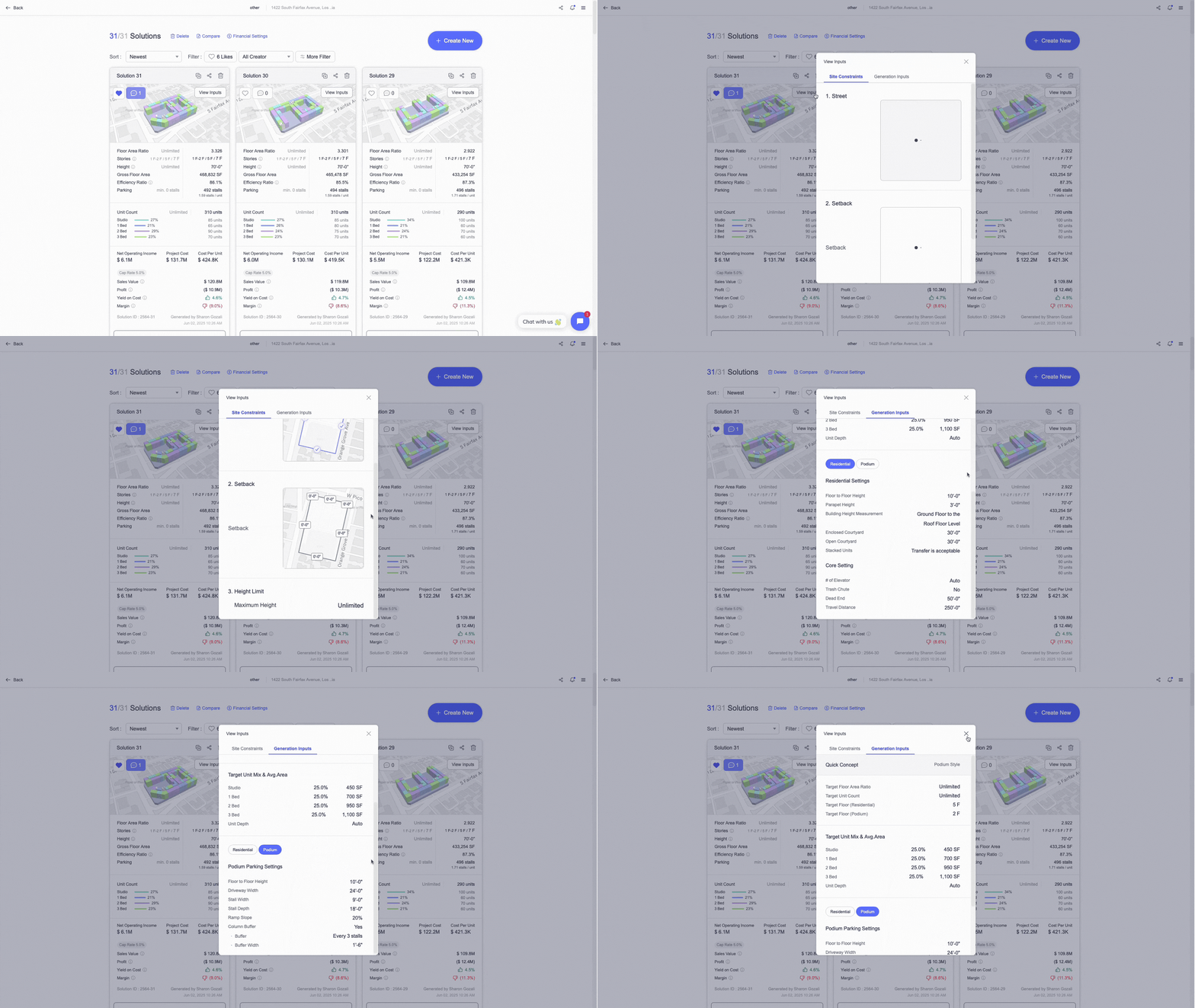
Each Solution Card includes detailed information about the inputs you provided to generate the solutions.
• Site Constraints Tab
Displays all the constraints configured during the project setup phase, including zoning rules, setbacks, height limits, and other relevant criteria.
• Generation Input Tab
If the solution was created using Zenerate's AI generation feature, this tab shows:
- Selected concept type
- Target Floor Area Ratio (FAR)
- Target unit count and unit mix
- Additional custom settings used during generation
This allows users to remind of the inputs they provided to generate a specific solution.
Explore What Zenerate Can Do
Ready to accelerate your feasibility studies? Book a demo with us today and get a free trial to see how fast site planning can be done.
Book a demo + Get a Free Trial