When planning a real estate development project, you need to start by choosing your site. To give you a smooth site setup experience, Zenerate has made it easy for you to define your site boundaries to start your project. Let’s dive right into it.
1. Selecting Parcels
Our platform supports Parcel Geometry (in selected states) , allowing you to be able to simply click on your desired parcel(s) that have been predetermined on our app. The only thing left is to refine your boundaries.

2. Drawing Site Boundaries
Using this method, all you need to do is to draw the lines and make sure that the area would be a closed polygon by clicking on the first point or using the right-click button on your mouse. If you would like to add some edges onto a certain side after boundaries are set, simply click on the middle button and the system will automatically generate 2 more points that could be used to change the edges.

3. Importing a CAD file
If you have been working on CAD and have settled on your boundary lines, you can simply import your CAD file onto our platform. Please do note that in order to upload it successfully, the CAD file must adhere to these rules:
Consist only one boundary line in a single layer,No curved line (you can use the convert feature to change the curve line into a single line)
When it has successfully imported, you would be able to see the preview of your outline and you want to make sure of two things:
Units is the measurement unit that your outline is measured in. Whether it’s feet, inches, meters, etc., the unit of measurement have to match the unit you used on your CAD file. ,Selected Area defines the type of area seen on the file. Only lot area is currently accepted.

*Note: Once the site setup is done, it cannot be edited or changed.
Map Settings
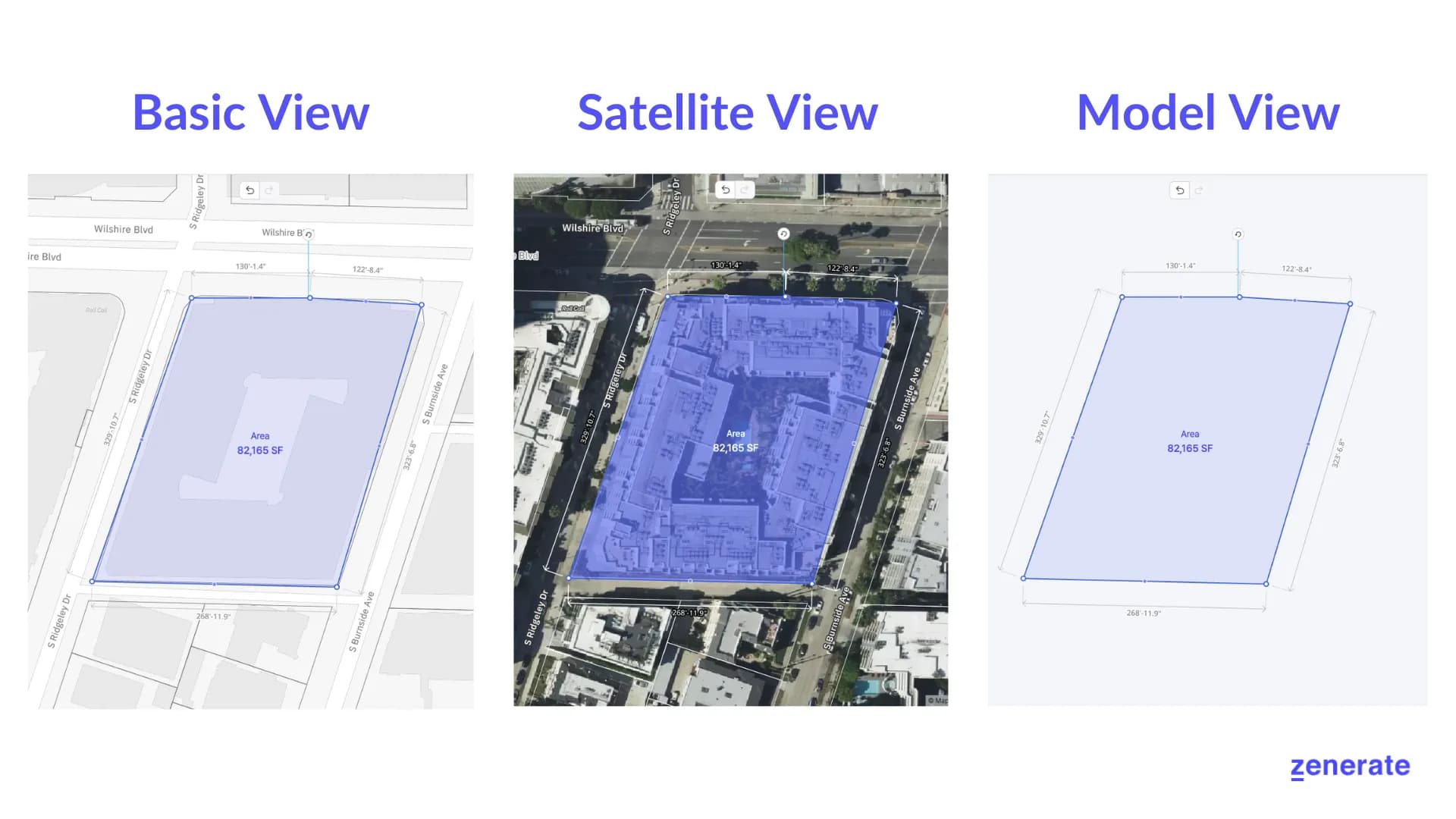
On our platform, we provide three different map views to help you work on your project; Basic View, Satellite View, and Model View.
Basic View is our default view where you would be able to see the streets and building outlines to see the area that you could work on.
Satellite View allows you to see the actual building and terrains that are located in the specific area. This is very beneficial for people who would like to see the current state of the area that they are working on.
Model View would show massing around your site so that you would be able to focus on building your model.
Other Resources
Learn more about the Zenerate app or book your demo today and get yourself a free trial.
Book Demo + Get a Free Trial