Before generating building layout solutions for your site, setting up detailed parameters in Zenerate ensures the AI produces results that closely match your target design goals. This guide explains how to access and configure the More Settings options based on your selected building type.
To access additional configuration options, click the AI Generate button located at the bottom of your workspace. Then, select your desired building layout type. Depending on your choice, the relevant settings tabs will become available.

Residential Tab
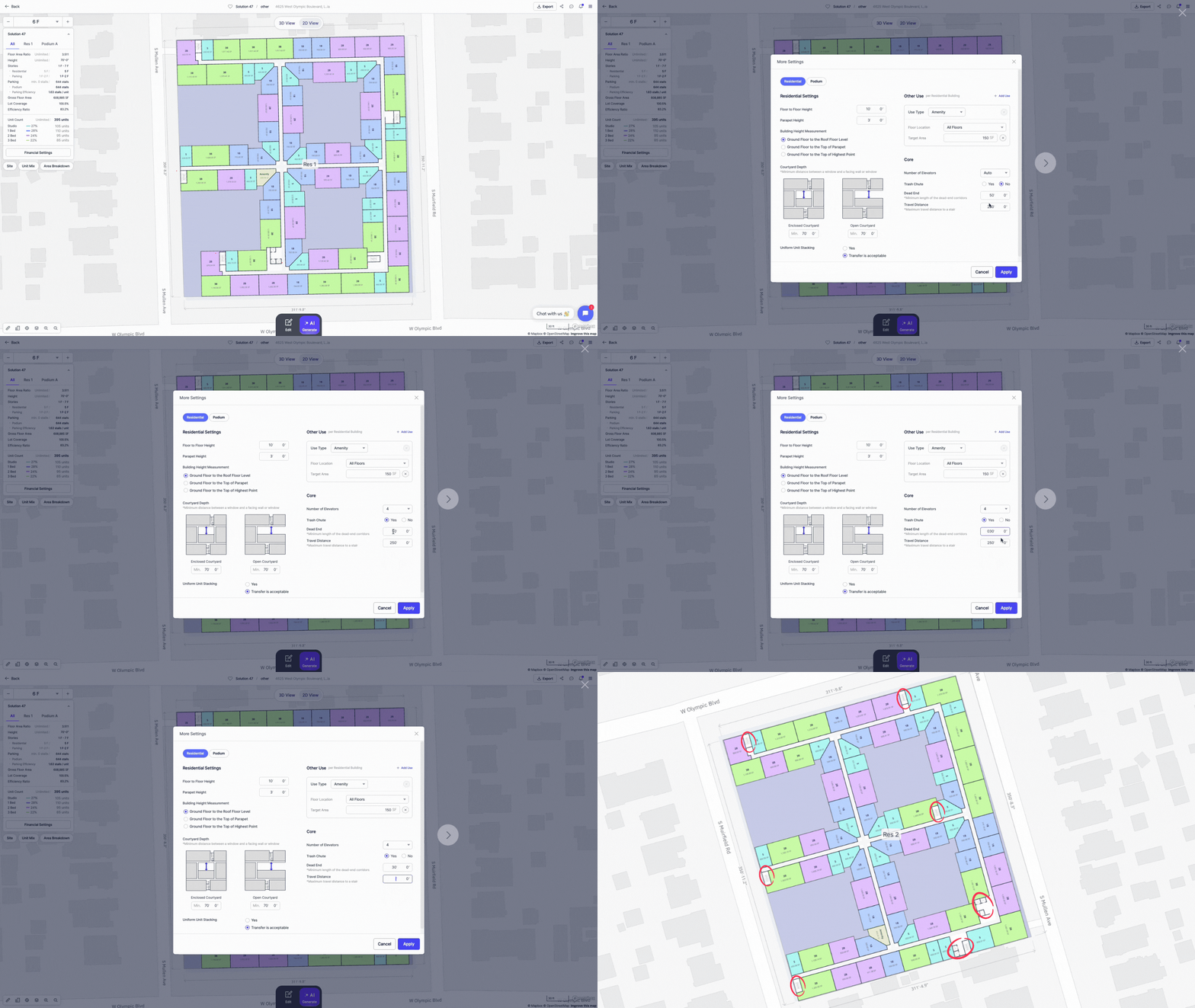
This tab appears for any building type that includes residential units. Here's what you can configure:
Dimensional Requirements
Define various dimensions of your residential building, including:
• Floor-to-floor height
• Parapet height
• Building Length (Garden Style)
• Building Separation Distance (Garden Style and Multifamily with Surface Parking)
• Choose your preferred building height measurement:
- Ground Floor to Roof Floor Level
- Ground Floor to Top of Parapet
- Ground Floor to Highest Point

Courtyard Depth
Set minimum distances between windows and facing walls or windows to ensure proper light and privacy. Users can set both:
• Enclosed Courtyard: the shortest distance between two opposite walls in the fully enclosed courtyard type
• Single-sided Open Courtyard: the shortest distance between two opposite walls in the single-sided open courtyard type
Users can also specify whether unit stacking should be uniform or if transfer floors (non-uniform stacking) are allowed.

Other Use (Non-Residential Spaces)
Add non-residential rooms (e.g., retail, amenities) inside your residential building:
• Use type: Select the type of non-residential space
• Floor location: Choose which floor it should be placed on
• Target area (sq ft): Specify desired area, or select "Max area" to fill the entire floor area with this non-residential unit.

Core Settings
Customize building core elements:
• Number of elevators
• Trash chute availability
• Maximum dead-end corridor length
• Maximum travel distance to stairs
Podium Parking Tab Settings
Available for building types that include podium parking:
Other Use
Add non-residential rooms inside the podium parking structure:
• Use type: Select the type of non-residential space
• Floor location: Choose which floor it should be placed on
• Target area (sq ft): Specify desired area, or leave to "Max area" for AI optimization
Parking Space Layout
Adjust podium parking dimensions and layout:
• Floor-to-floor height
• Driveway width
• Stall width and depth
• Ramp slope
• Column buffer width and repetition frequency

Wrap Parking Tab Settings
For Wrap Style layouts, configure:
• Garage stall width and depth
• Floor-to-floor height
• Driveway width
• Stall dimensions (width x depth)
• Ramp slope
• Column buffer width and repetition

Surface Parking Tab Settings
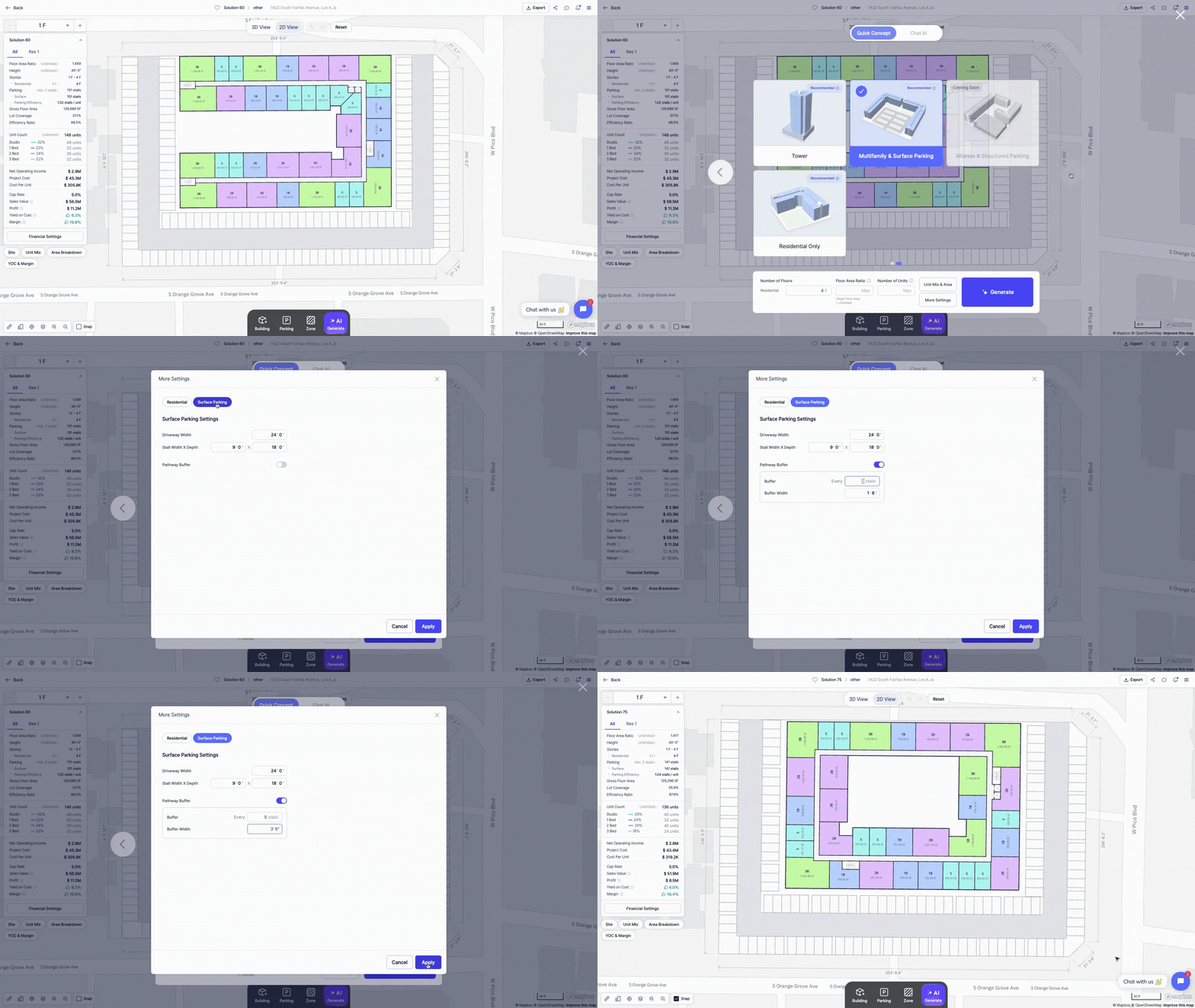
For layouts with surface parking, you can adjust:
• Driveway width
• Stall width and depth
• Pathway buffer width and repetition
Townhouse Residential Tab Settings
Visible when you select the Townhouse layout, this tab lets you customize:
• Floor-to-floor height
• Townhouse block length (minimum and maximum)
• Block separation distances (back-to-back and side-to-side)
• Parapet height
• Building height measurement method (Ground Floor to Roof, Parapet, or Highest Point)
Townhouse Driveway Tab
Configure driveway and parking settings for townhouse layouts:
• Enable or disable surface parking stalls
• Driveway width
• Stall width and depth
• Pathway buffer width and repetition

Explore What Zenerate Can Do
Ready to accelerate your feasibility studies? Book a demo with us today and get a free trial to see how fast site planning can be done.
Book a demo + Get a Free Trial