Understanding that our users need to modify designs after they're generated or manually create them from scratch, Zenerate makes it easy to create and edit components within your building layout.
Choose A Building Type
The first step in editing your building layout is selecting the right building type for your feasibility studies. Zenerate provides five different building types:
Midrise,Tower,Wrap Type,Townhouse,Standalone
Once you choose your building type, Zenerate automatically generates a basic layout to kickstart your design. You can then customize the layout settings directly from the right sidebar of your workspace, which appears when you select a building layout.

Midrise, Tower & Wrap Type
For building types such as Tower, Midrise, and Wrap Type, you’ll have access to several editable options:
1. Adjust the Number of Floors & Floor-to-Floor Height
You can quickly change the number of floors and adjust the floor-to-floor height by entering your desired values. Zenerate updates the design in real time, allowing you to instantly see the changes in 3D view.

2. Layout Type Presets
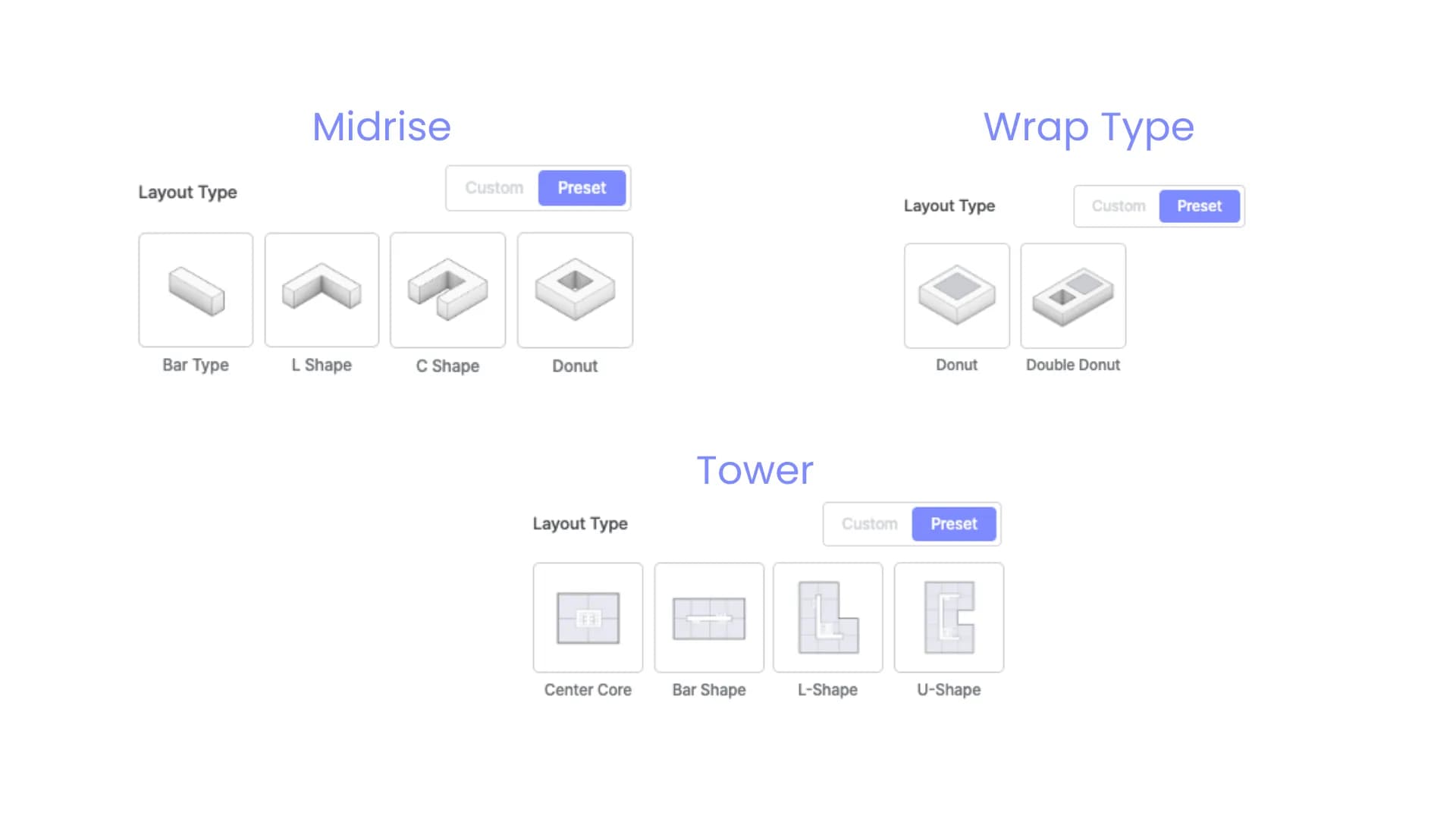
Zenerate gives you the option to either customize your layout or choose from several preset layout types, each suited to a specific building design:
Tower: Center Core, Bar Type, L Shape, U Shape,Midrise: Bar Type, L Shape, C Shape, Donut ,Wrap Type: Donut, Double Donut
Simply click on one of the preset options, and Zenerate will adjust your current layout to match that shape.
3. Define Unit Configuration
Unit Area & Ratio: You can adjust the average area and ratio of each unit to fit your desired layout specifications. Once you are done, click apply to have the system reflect the changes.,Unit Depth & Balconies: type in unit depth measurement and turn on the balcony feature if desired.
These tools allow you to fine-tune your building to meet specific design and functionality needs with precise inputs.
Townhouse & Standalone
For Townhouses and Standalone Buildings, the layout editing process is a bit different but just as flexible:
1. Townhouse Layout
Number of Floors & Floor-to-Floor Height: Adjust the number of floors and the floor-to-floor height by typing in your desired measurements.,Unit Types: For each townhouse unit, you can customize:
- Lot Size: Adjust the size of the lot for each unit.
- Yard Depth: Customize the depth of both front and backyards for your townhouses.
- Net Floor Area & Garage Load: Define the usable floor area and garage load for each unit.,Number of Units: You can modify the number of units per type in the layout, and Zenerate will automatically update the design to reflect the changes.
2. Standalone Layout
Floor-to-Floor Height: Set the height for each floor by entering your desired value.,Levels & Usage: For Standalone buildings, you'll be adding levels instead of units. You can specify:
- Number of Floors per level.
- Usage of each level (e.g., residential, commercial, or mixed-use).
- Usage Ratio to define how much of each level is designated for specific purposes.
Standalone type will only show the areas used for each use type and does not provide individual units that could be changed like other types.
Drag and Drop Editing Feature
When you need to modify your building layout, Zenerate’s intuitive drag-and-drop feature makes it simple. Just drag the edge points of your layout to instantly expand or shrink your design.
This feature can also be used to modify other parts of the building layout — such as moving units and centerlines, extending buildings, adding wings, editing units, allocating vertical cores, and customizing corridors.
As you make these changes, Zenerate automatically recalculates and generates the most suitable number of units and layout configurations, ensuring your design stays optimized and efficient.

Other Resources
Zenerate provides multiple features to easily modify your designs. Visit our blog page for more resources or Book a demo with us and get a free trial for a hands-on experience today!
Book Demo + Get a Free Trial