Zenerate’s Unit Type Preset Customization feature gives users more flexibility when configuring unit types for project-specific requirements. Users can rename unit types, change bedroom types, add 4-bedroom and 5-bedroom unit types, customize unit colors, manage preset groups, delete unused units, preserve customized settings, and use up to 10 unit types in AI generation.
This tutorial explains how to customize unit type presets in Zenerate and use them to create clearer residential layouts during a real estate feasibility study.
Step 1: Open the Unit Type Preset Settings
Start by opening your project in Zenerate, adding a building to your site, and navigating to the unit type preset settings.
This is where you can configure the unit types used during AI generation. Instead of relying only on default unit categories, you can adjust the preset structure to better match the project’s residential program.
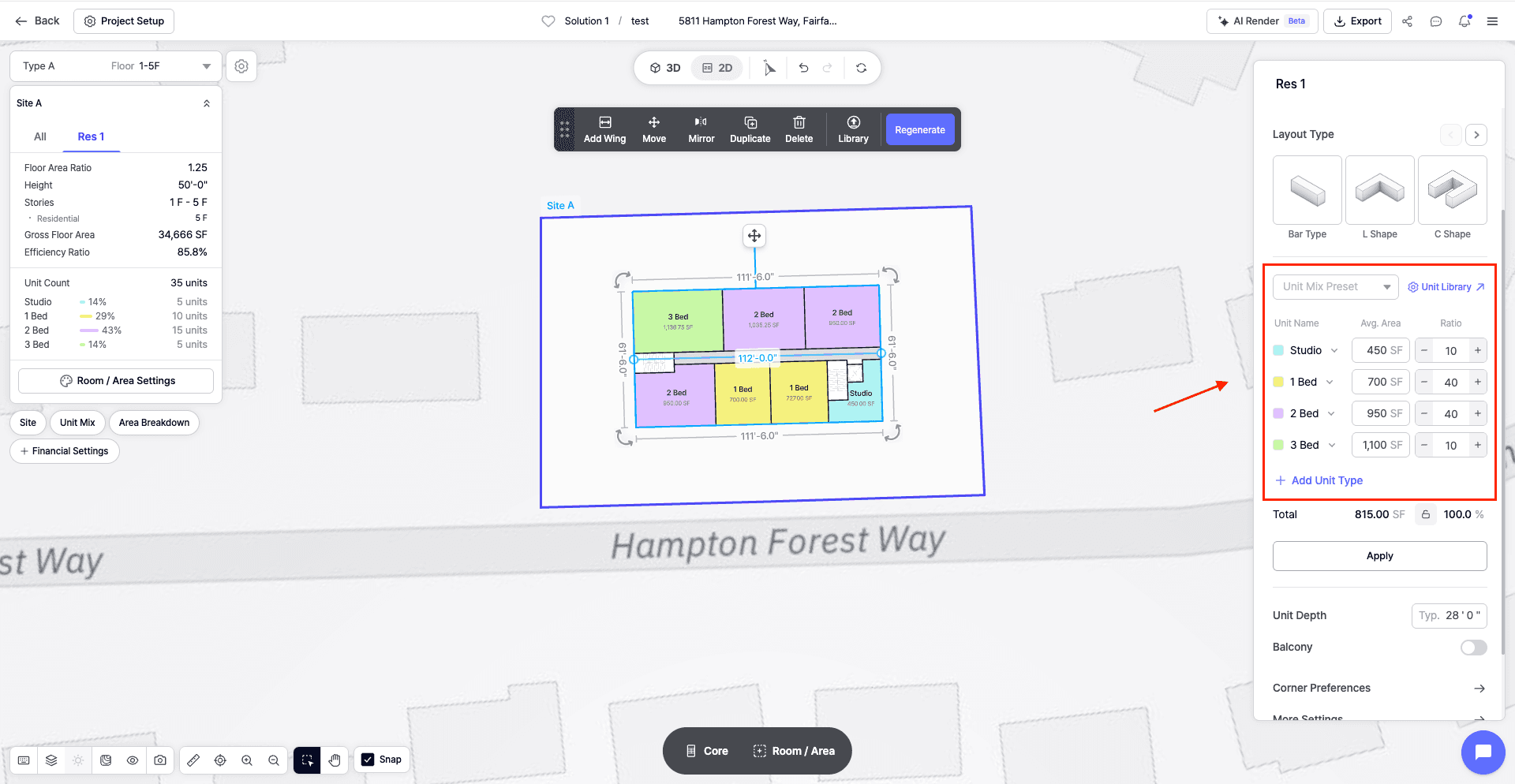
This is especially useful when working on multifamily housing, senior housing, workforce housing, townhomes, or mixed-density residential projects where the default unit types may not fully reflect the intended unit mix.
During site feasibility analysis, these settings help make the generated layout more aligned with the project’s actual planning goals.
Step 2: Renaming and Adding Unit Types
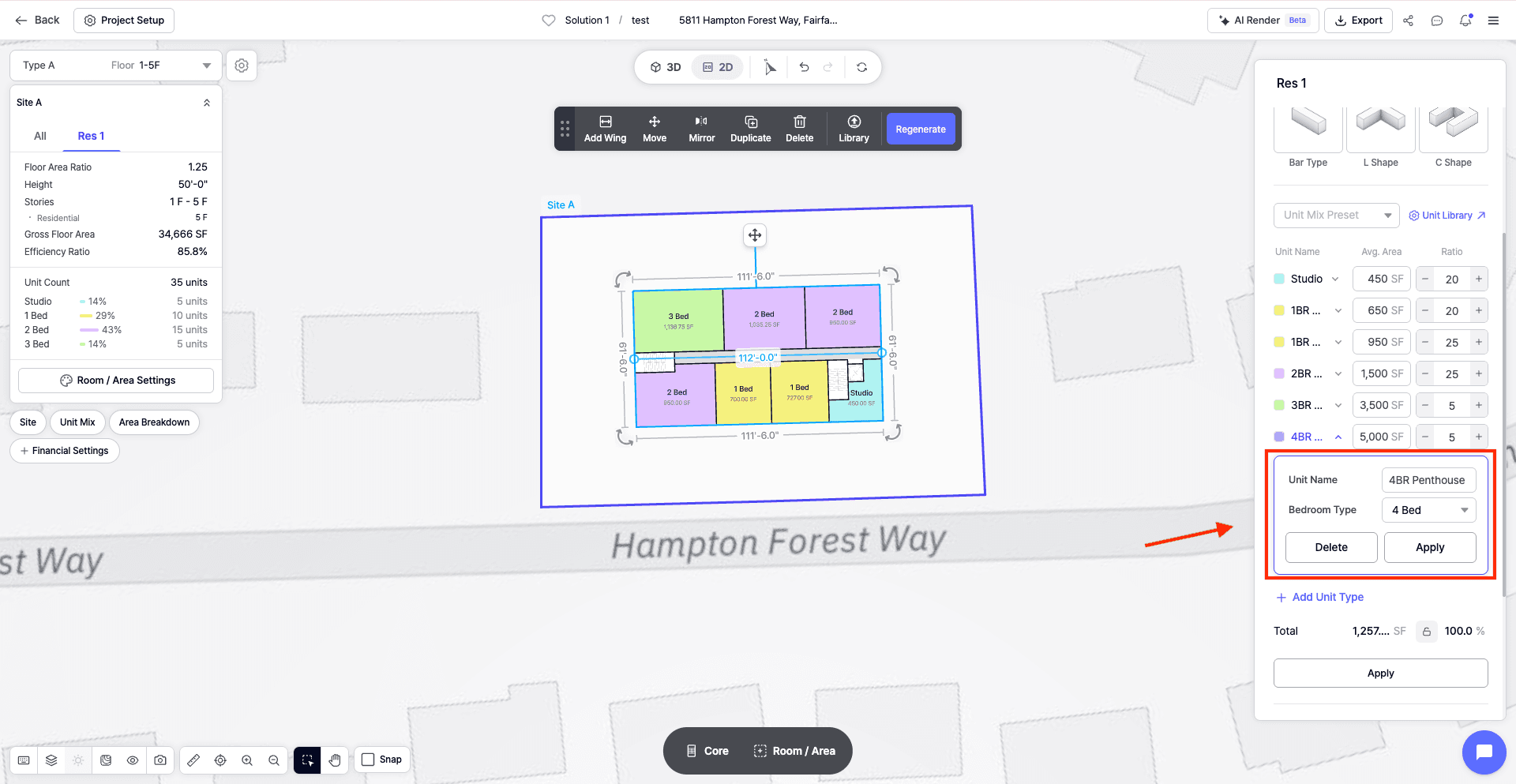
Users can rename unit types to match the naming convention used for the project.
For example, instead of using only general labels, you may want to rename unit types based on your internal standards, client requirements, or project-specific unit strategy.
Zenerate also allows users to add 4-bedroom and 5-bedroom unit types.
This is useful for projects that require larger residential units, family-oriented housing, co-living configurations, student housing, or other layouts that go beyond standard studio, 1-bedroom, 2-bedroom, and 3-bedroom assumptions.
Adding 4-bedroom and 5-bedroom unit types gives users more flexibility when testing different residential programs during early land development feasibility work.
Because larger unit types can affect unit count, parking demand, total rentable area, etc., it is important to include them accurately before generating design options.
Step 3: Customize the Color of Each Unit Type
Users can customize the color of each unit type.
Color customization makes it easier to visually identify different units in the layout. Instead of reviewing a floor plan only through labels or schedules, users can quickly understand how unit types are distributed across the building.
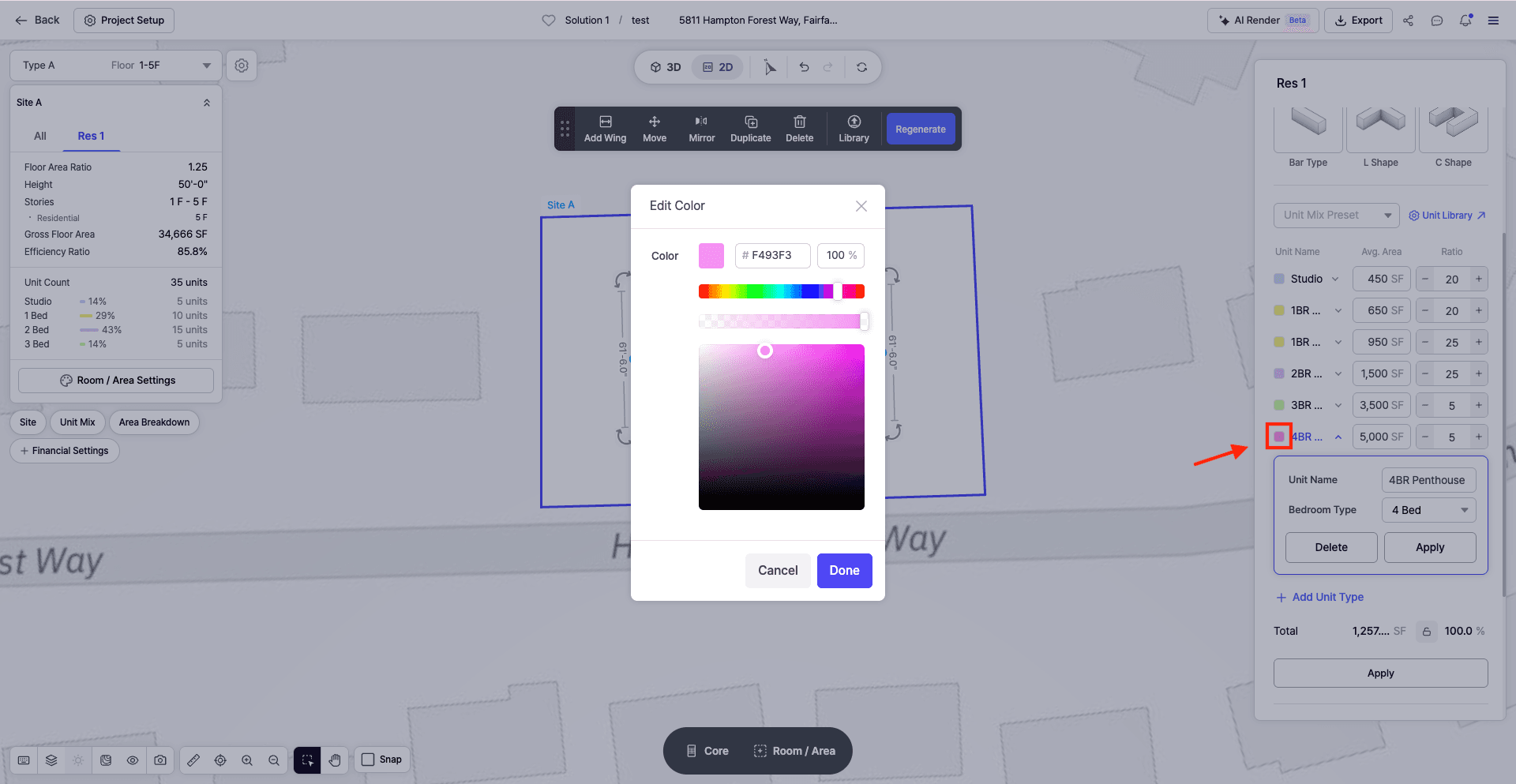
During a real estate feasibility study, visual clarity can make the review process faster. Color-coded unit types help users understand the layout at a glance and make it easier to compare different unit mix strategies.
Step 4: Save Unit Preset Groups
Users can also save their own unit preset groups.
Preset groups help organize different sets of unit type configurations. For example, one preset group may be used for a market-rate multifamily project, while another may be used for senior housing, workforce housing, student housing, or a project-specific unit mix.
Saving preset groups helps keep the workflow organized, especially when working across multiple studies or testing several unit strategies.
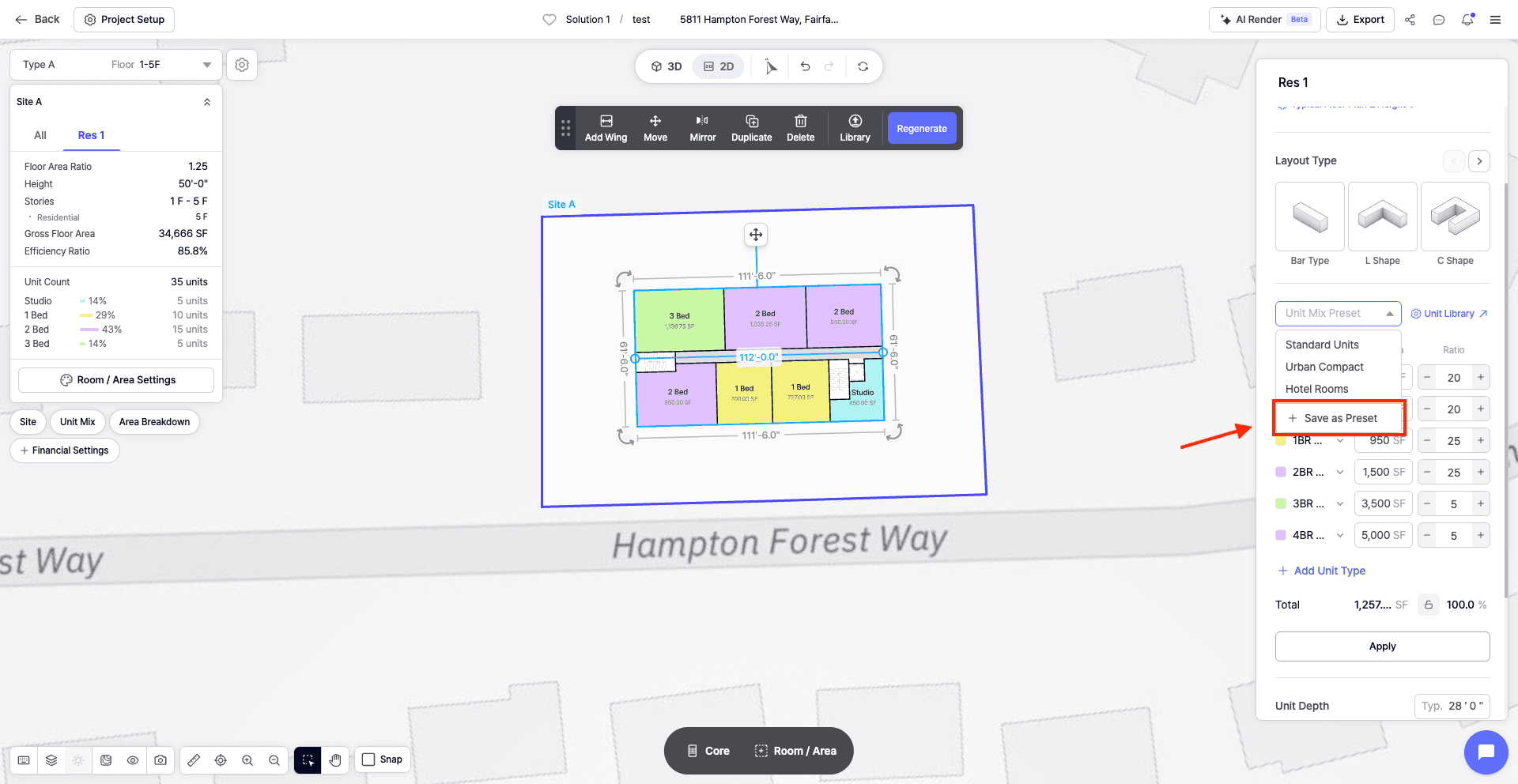
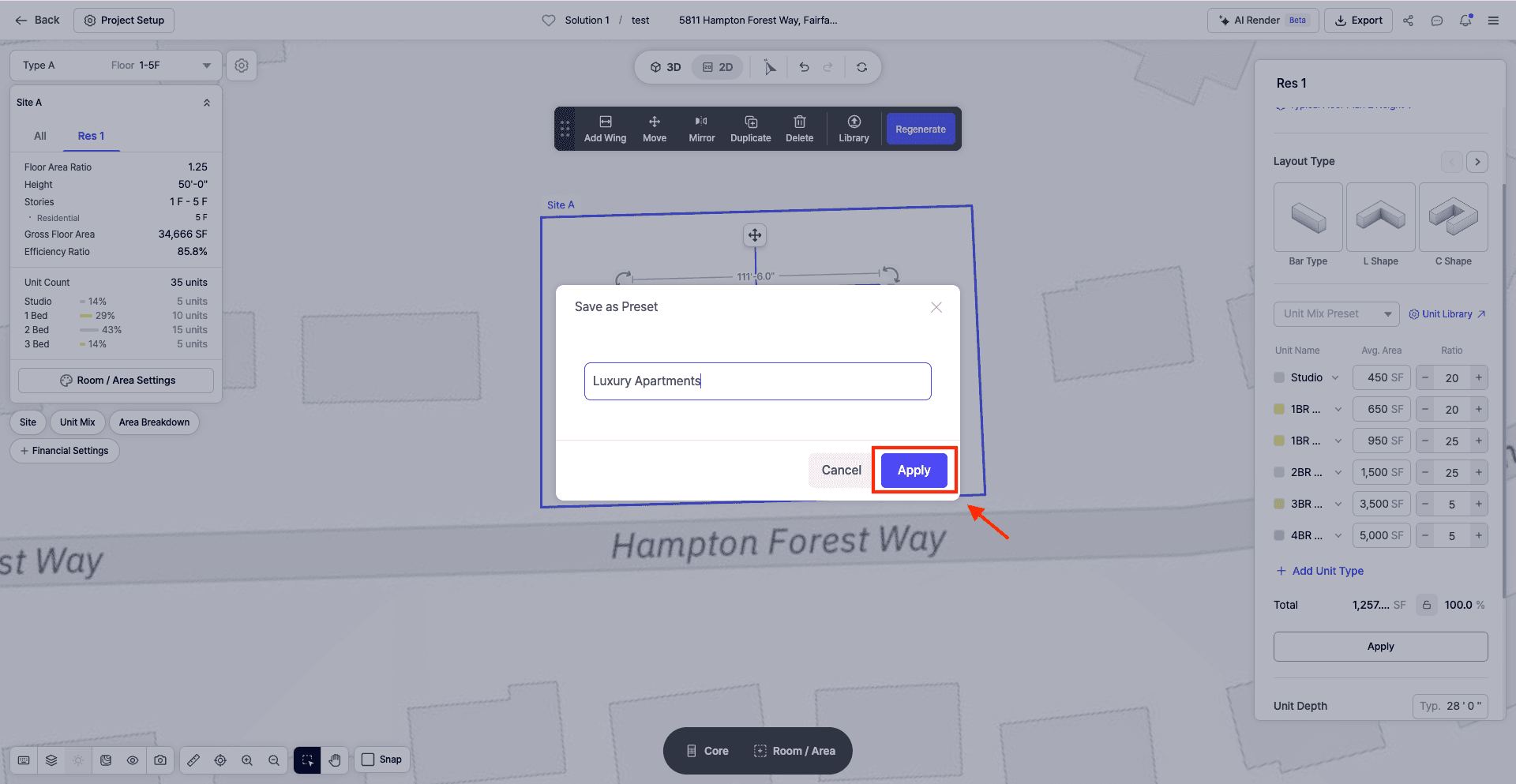
Users can also rename preset groups and delete preset groups that are no longer needed. This helps keep the workspace clean and prevents outdated unit settings from cluttering the project.
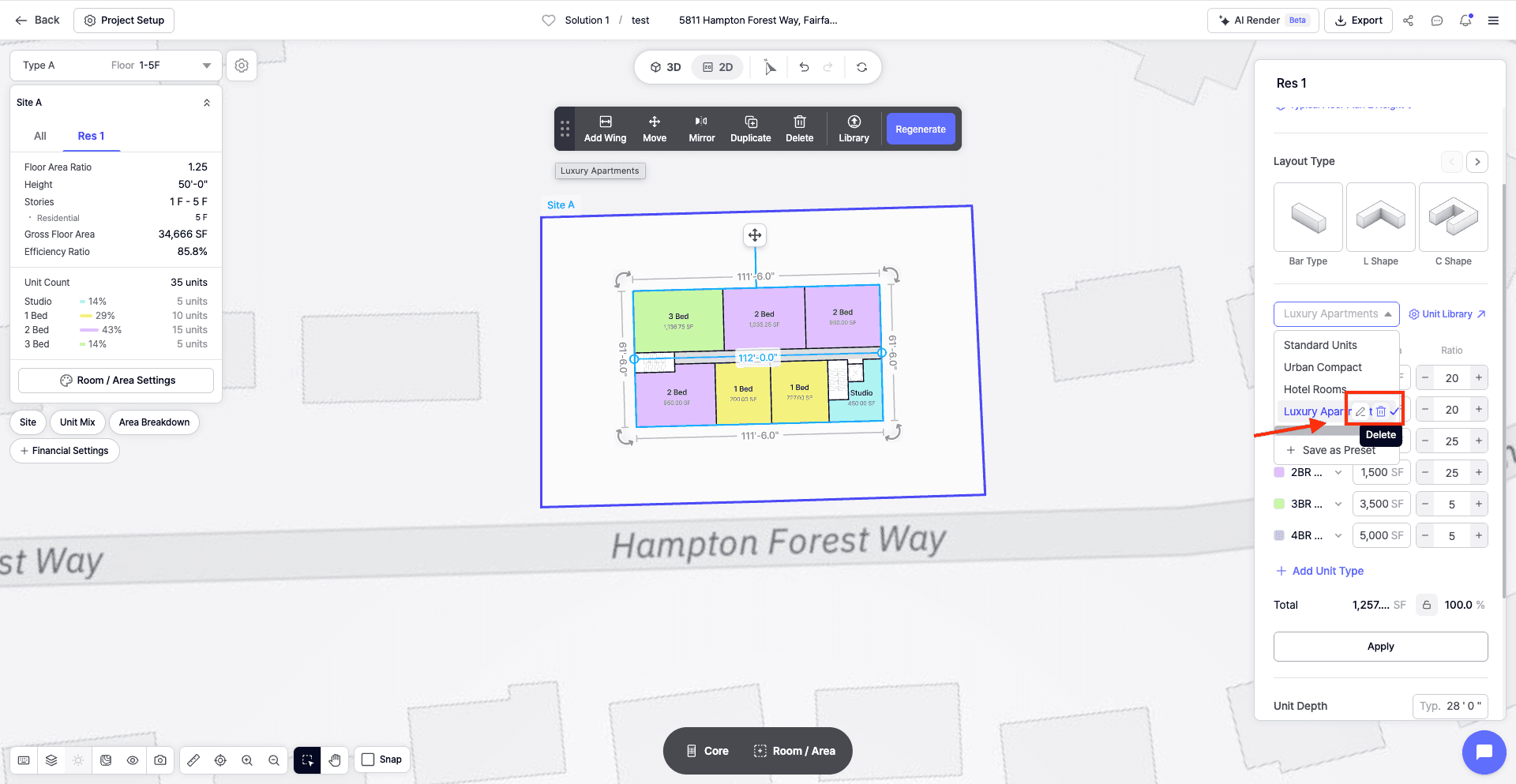
For teams working through multiple site feasibility analysis scenarios, preset group management makes it easier to stay organized.
Step 5: Use Up to 10 Unit Types in AI Generation
Zenerate now supports up to 10 unit types in AI generation.
This gives users more flexibility when creating residential layouts with a wider range of unit types. Instead of being limited to a smaller set of assumptions, users can include more unit variations when generating design options.
This is especially useful for projects with more complex unit programs, such as:
• Mixed-income housing
• Mixed-density residential developments
• Senior housing
• Student housing
• Workforce housing
• Large multifamily communities
• Projects with multiple unit variations
Using up to 10 unit types allows the generated layout to better reflect the intended residential strategy.
During early real estate feasibility study work, this flexibility helps users test more realistic unit mix scenarios and understand how different unit types affect layout, density, parking, and site yield.
Explore What Zenerate Can Do
Zenerate’s Unit Type Preset Customization feature gives users more control over how residential unit types are configured and used during AI generation.
For developers, architects, and planners working through a real estate feasibility study, this feature helps make residential layouts more organized, more visual, and more aligned with the intended unit mix strategy.
If you would like to discuss how Zenerate could support your feasibility or land development workflow, book a demo below to start the conversation.
Book a Demo + Start a Free Trial