We’ve made architects’, real estate developers’, and contractors’ dream a reality by enabling them to instantly visualize how a project will look when a specific development style is applied.
With Zenerate’s AI-powered platform, you can streamline the feasibility study and townhouse site planning process, easily customize layouts, and make data-driven decisions that align with zoning, density, and unit mix requirements — all while maintaining full control over your design.
Quick Concept
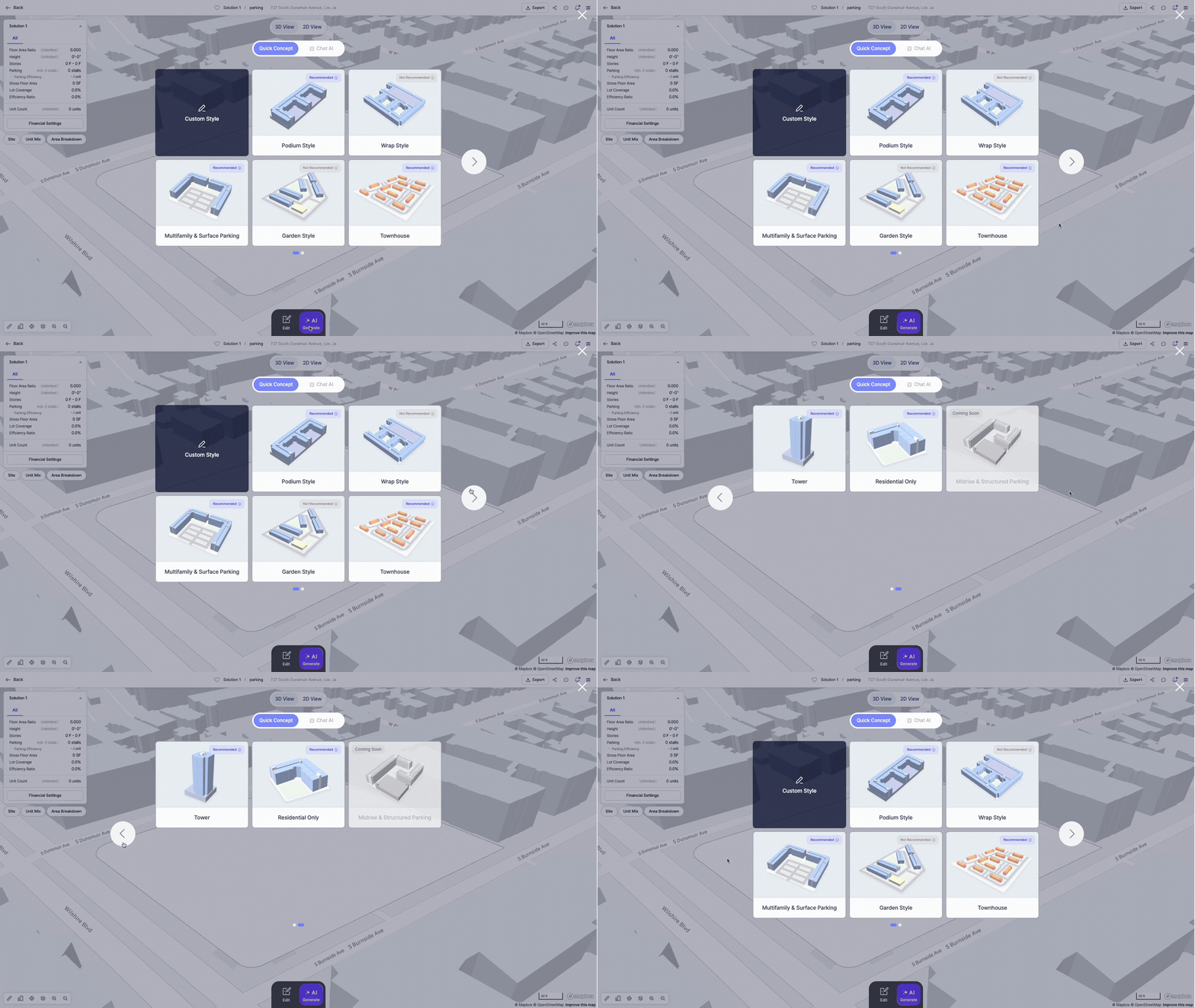
Zenerate supports a wide range of development types. You can select from:
Podium Style,Wrap Style,Multifamily & Surface Parking,Garden Style,Townhouse,Tower,Residential Only
Based on the size and shape of your site, Zenerate will automatically generate various layout options that meet project objectives. These options help you begin with viable design concepts that reflect your constraints.
Project Goals
To generate building layouts that align with your development goals, Zenerate allows you to set specific parameters. These include:
Number of Floors: Set how many residential stories the building will have.,Floor Area Ratio (FAR): Input your target FAR. If left blank, Zenerate will auto-optimize for your site.,Number of Units: Set the total number of units you aim to include.
Tip: If you’ve entered a FAR value, hovering over the “i” icon next to “Number of Units” will show a recommended number of floors based on your target FAR.

Unit Mix and Area
Clicking the Unit Mix & Area option allows you to configure unit types for your selected layout.
Podium, Wrap, Multifamily & Surface Parking, Tower, Residential Only and Garden Style
For residential buildings, you can input both the average area and unit ratio for the following:
Studio,1 Bedroom,2 Bedroom,3 Bedroom
You can also define unit depth manually by unchecking the Auto setting. By default, Zenerate sets the depth to 28 feet.

Townhouse
If you’ve selected a townhouse building type, clicking Townhouse Mix lets you configure:
Unit Type Ratios,Parcel Width and Depth,Yard Depth,Net Floor Area,Garage Load Orientation
Once you’ve input all necessary details, click Apply to save your configuration so the system can generate results accordingly.

Access Additional Settings
Zenerate also includes advanced customization options through the More Settings button. This section allows you to fine-tune details for both building layout and parking, including:
Adding non-residential spaces (e.g., retail, amenities),Setting building core locations
These settings provide greater precision when aligning your conceptual plans with real-world constraints and compliance requirements.
Generate and Review AI-Optimized Layouts
After configuring your site and building parameters, click Generate. Zenerate will produce multiple layout solutions tailored to your target inputs and site characteristics—in less than a minute.
Each layout option can be reviewed, edited, and exported to industry-standard tools such as Revit, AutoCAD, PDF, or Excel for further development and collaboration.
Explore What Zenerate Can Do
Zenerate makes it easy for you to get precise with your designs. Book a demo with us and get a free trial for a hands-on experience today!
Book Demo + Get a Free Trial